Table of contents
General interface of White Cat
White Cat features a dashboard that can span several screens. Special care is given to keeping the workspace simple and the ergonomics comfortable.
On startup, your dashboard looks like this:
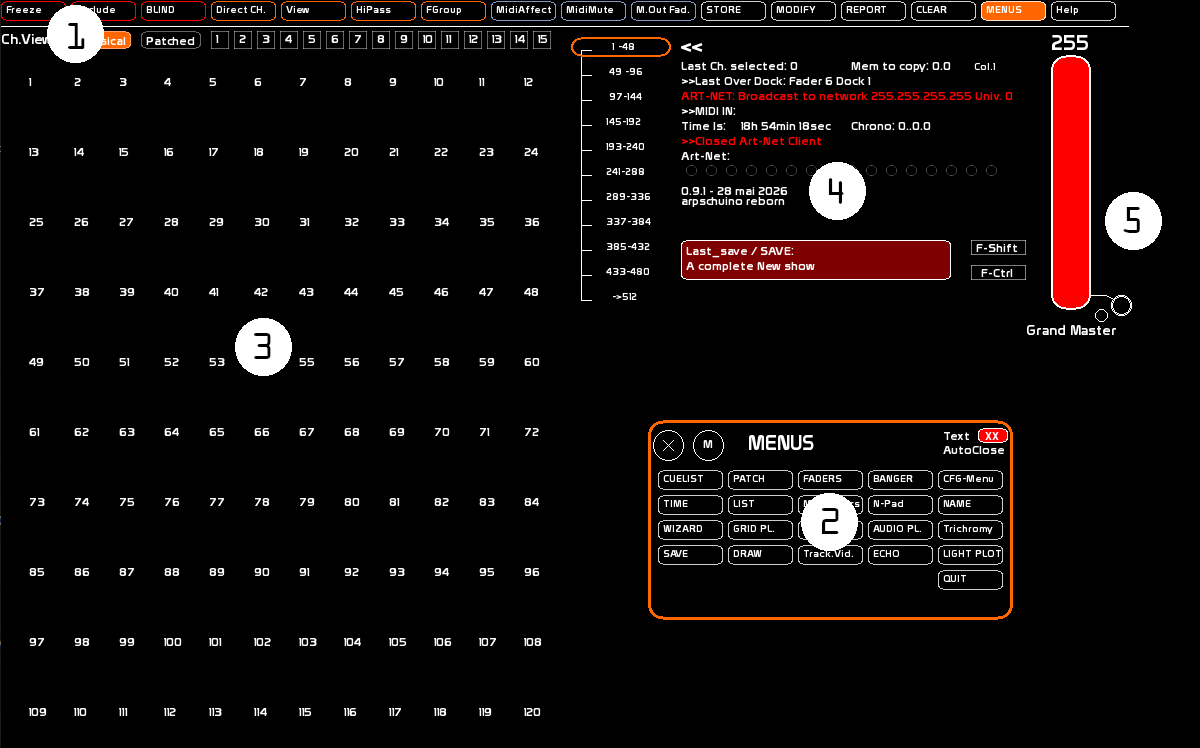
It is made up of 6 main parts:
- The main bar, holding the major commands shared by the different windows, along with the most common commands.
- The [MENUS] window, which gives access to the different windows.
- The channels area.
- The information feedback (keyboard input, DMX info, midi, art-net).
- The manual bangers area.
- The grand master.
Window system
The [Menus] window
The [Menus] window lets you call up the different White Cat windows with a mouse click.
To open the [Menus] window:
- click [Menus] in the bar at the very top;
- or right-click on the workspace: the [Menus] window appears under your cursor.
Opening and closing windows
The White Cat workspace is adjustable to your needs.
You can open and close windows with:
- the [MENUS] window;
- the keyboard shortcuts;
- the midi buttons of your control surface.
The position of each window is saved for each show.
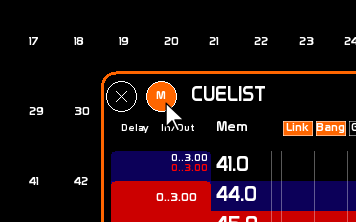
Each window can be closed or moved, using two icons:
- click [X] to close the window, or type the command that calls this window;
- click [M] and hold to move the window.
Window classification
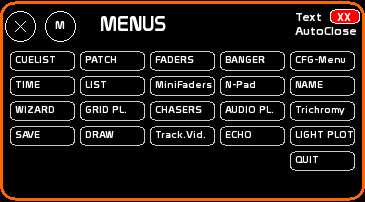
The windows are arranged in the [Menus] window according to the following logic:
- Sequential, batch operations, saving;
- Channels and channel actions;
- Faders and contents;
- More contents, AudioPlayers and the [Name] function;
- Configuration and Utilities.
Navigating between windows
Clicking a window brings it to the front, giving it the “focus”. A window has the focus when its border is orange.
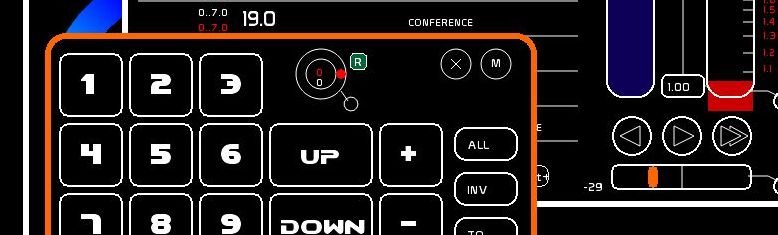
Quick navigation between windows is possible using the [Page DOWN] and [Page UP] keys.
The [CTRL][PAGE DOWN] combination cycles through these windows in solo, including a blackout position.
Window snapshot
You can remember which windows were open and turn them all off with the keyboard combination [SHIFT][PRINT SCREEN]. You can recall the remembered windows with [CTRL][PRINT SCREEN].
Resetting window positions to default
If you use an external monitor in your theatre and then go on tour, you may no longer be able to reach windows that were saved in the space of the second monitor. In that case, go to CFG Menus, Screen tab.
User interactions
There are 6 types of user interaction:
The mouse or touchscreen
White Cat is designed for touch (single point).
All actions are therefore done with the left click.
The right click is only used in two cases:
- when you are not in the [LightPlot] window, it opens the [MENUS] window;
- when working in the [LightPlot] window, it lets you move around the light plot space (ViewPort).
All menus are designed for touch operation, with adequately sized buttons and masters.
Special care has been given to mouse operation: the faders all have a 255-pixel travel, allowing the greatest possible precision.
The crossfade can also be done with the mouse, with a ratio offering an equivalent of the X1/X2 crossing technique (the preset comes in before X1 goes down).
A virtual numeric keypad for touchscreens is available: the Num-Pad.
The computer keyboard
The keyboard lets you work very fast, through shortcuts and key combinations ([Ctrl] and [Shift] in particular).
Midi
Almost every function can be controlled over midi. You can therefore use control surfaces such as the BCF2000 or the iControl, or software on a touch tablet or iPhone, to work manually: sequential, masters, colour wheel, crossfade accelerators, LFO triggers, various buttons…
Arduino
A great many functions are accessible by talking directly with Arduino interfaces (USB or RF). Arduino interfaces allow electronic integration in a simple and inexpensive way (button boxes, custom and futuristic interfaces, etc.). White Cat ships with scripts for the Arduino, letting you very quickly build a button box, or control motors, relays, mini-dimmers, and so on.
Remotes such as phones or tablets
A dedicated remote-control save lets you drive White Cat through TouchOSC.
Since version 0.9, the iCat module, which relied on the free program Fantastick (now obsolete), is no longer available. You must therefore turn to TouchOSC. For now communication is one-way only, from TouchOSC to White Cat.
Art-Net and Banger
White Cat can receive DMX over Ethernet. Using channel macros and Banger, the event manager, you can strongly drive White Cat from another lighting desk.