Table des matières
List: a short description of the channels
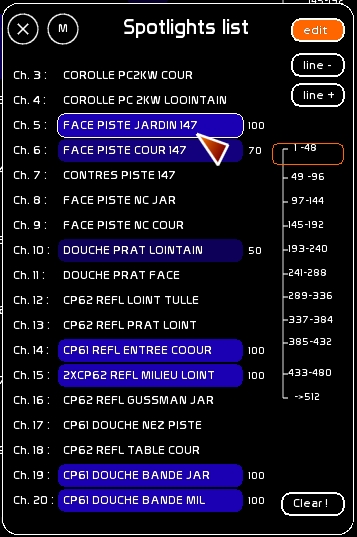
LIST allows you to give a name or a description to your channels and to have a quick look at their levels onstage.
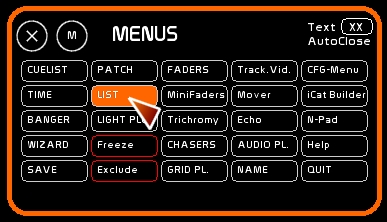
To call the LIST window:
- Click [LIST]
A vertical scroll bar and line +/line - buttons allow you to navigate up and down within the 512 channels.
Channels have a background color that brightens as the intensity level gets higher:
- from Cue List (blue color)
- from Faders (orange color)
The actual level is also displayed.
To edit the information in LIST:
- select the [EDIT] box

Giving a name to a channel
- Open the NAME window, by clicking [NAME] or by pressing [F5]
- Type the description, nickname or gel number…
- Using the mouse hover above the channel description area in the list window
- Click in the background oval to load the text inside of it (or click where it would be if the channel were on)
Clearing the channel description
- Same as previous but don't type any text.
Channel Macros
version 0.8.2.7
It is now possible to record macros inside the channel function, to trigger events from a channel.
The macro editing is done from [LIST].
Macros are designed mainly for two purposes:
- enabling the recording of audioplayers directly from Cuelist, without using a banger
- enabling events triggering depending on a channel state condition
Those macros are triggered by conditions, based on the level of the channel, either coming from the CueList and then from the Faders Buffer. It is the highest output from those two buffers which is used.
So, macros may be used from CueList recording, or triggered from Faders or chasers, or from the video tracking tool.
Macro Process:
- White Cat verifies the level of channels
- if the channel has changed its level
- if the macro is ON
- if the channel condition is met (is true)
- then Macro is triggered
Editing Macro
LIST must be in EDIT mode.
Last Channel selected is the one you are editing.
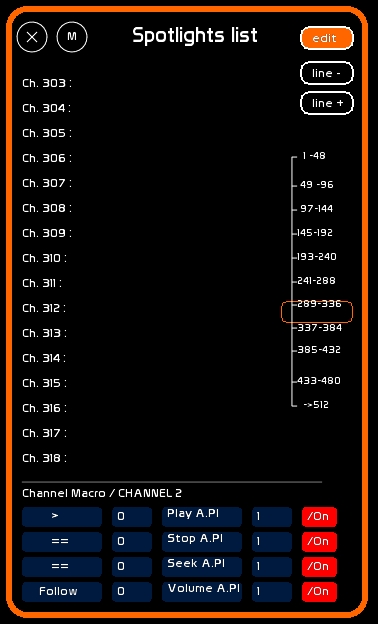
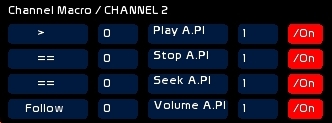
There are 4 macros available per channel.
Each macro is presented as follow:
| Condition | Val 1 | Action | Val 2 | ON/OFF of the macro |
Condition, Action and On/Off are edited with a click of the mouse.
Val 1 and Val2: type value, click val 1 or val 2 box.
Condition
Each macro is composed of a conditional trigger:
| >= | Greater or equal to | Val 1 |
| > | Greater to | Val 1 |
| == | Strictly equal to | Val 1 |
| != | Different from | Val 1 |
| ⇐ | Less than or equal to | Val 1 |
| < | Less than to | Val 1 |
and a very specific condition which is more an instruction than a condition:
| Follow | Macro will follow channel value. In this case Val 1 is not used. |
Val 1
Val 1 is channel level, argument of the condition.
Action
There are some actions and certain actions are only performed under certain conditions:
| Bang Banger | All conditions, including Follow | Bang Banger Val 2 |
| Load Audio | Only with Follow | Load audiofile number by using channel level as reference, Val 2 is AudioPlayer number |
| Play A.Pl | All conditions, including Follow | Play AudioPlayer Val 2 |
| Stop A.Pl | All conditions, including Follow | Stop AudioPlayer Val 2 |
| Seek A.Pl | All conditions, including Follow | Seek to Beg AudioPlayer Val 2 |
| Loop ON A.Pl | All conditions, including Follow | Loop ON AudioPlayer Val 2 |
| Loop OFF A.Pl | All conditions, including Follow | Loop OFF AudioPlayer Val 2 |
| Volume A.Pl | Only with Follow | Channel intensity will be reported to Volume in AudioPlayer Val 2 |
| Pan A.Pl | Only with Follow | Channel intensity will be reported to Pan in AudioPlayer Val 2 |
| Pitch A.Pl | Only with Follow | Channel intensity will be reported to Pitch in AudioPlayer Val 2 |
| Midi CH15 CC | All conditions, including Follow | Sends midi signal to the output, Ctrl Change, Channel 15 , Pitch Val 2 |
| Midi CH15 Key-On | All conditions, including Follow | Sends midi signal to the output, Key On, Channel 15 , Pitch Val 2 |
| Midi CH15 Key-Off | All conditions, including Follow | Sends midi signal to the output, Key-Off, Channel 15 , Pitch Val 2 |
| Fader Level | Only with Follow | Channel intensity will be reported to Fader Level Val 2 |
| Fader LFOSPeed | Only with Follow | Channel intensity will be reported to Fader LFO Speed Val 2 |
Please note that using midi to remote control other parts of White Cat, you will need to use MidiYoke as input/output to loop back the signal in White Cat. This option enables you to access all functions of White Cat thru midi assignment.
A concrete example: an audioplayer on two channels
Channel 1:
- will be used to assign channel files from the audio list. The intensity of the channel will be the file number. It will be assigned to Player audio 1
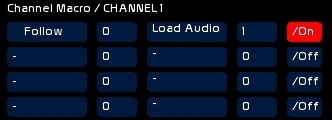
Channel 2:
- if the channel 2 is greater than 0, this will trigger the PLAY of audioplayer 1
- if channel 2 is equal to 0, STOP and SEEK to beginning of audioplayer 1
- channel 2 level is also remote controlling the volume of audioplayer 1