Table des matières
Screen configuration
This menu allows you to set up appearance parameters in White Cat:
- using White Cat on multiple screens
- in windowed or borderless mode, fullscreen or partial screen
- position of White Cat window on your desktop
- colored theme choice
- editing your own colored theme
It also enables you to record internal positions of windows in White Cat, recall them or reset them to default.
To gain access to it, in the CFG MENU click [SCREEN CFG].
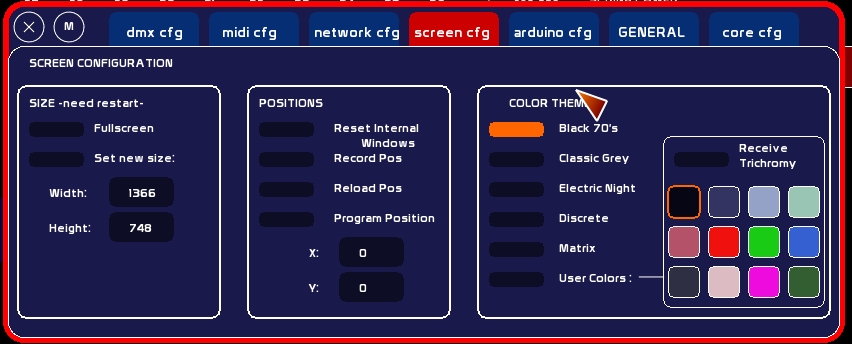
SIZE
Size block relates only to the White Cat window on the desktop. You will need to restart White Cat to see changes.
Fullscreen
- Click [Fullscreen] to adjust screen resolution to the x and y specified in Width and Height. The graphic card will adjust itself to it.
Be sure to enter parameters of size matching resolutions available in your graphic card (1024×728, 1024×768, 1280×800, 1440×900, etc…). The best way is to have a look at the different resolutions from the Window's Control Panel/Display.
Auto: multiple screen
- Click [Auto] to enable White Cat to display over multiple screens, automatically.
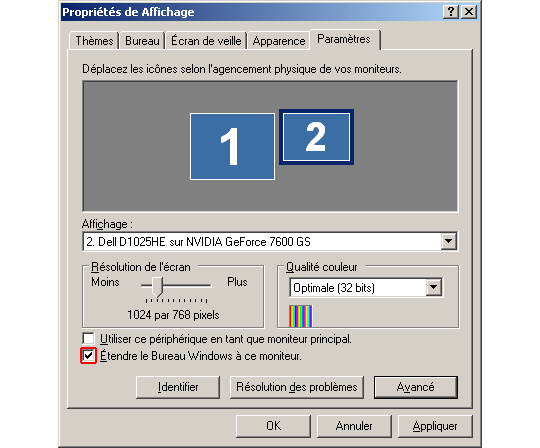
If you have a second monitor plugged in and active, and Windows desktop is in span mode, White Cat will be automatically set to this enlarged resolution. It may be extended to 2, 3, or 4 monitors in the same way.
Working with two monitors, enables you to set different windows (CueList, minifaders, trichromy) on the second monitor while keeping the main screen in its original form. This detection of monitors is done when White Cat starts.
[Auto] may be left ON, even if you have only one monitor. If Auto is on, [Set New Size] will not be taken as a parameter…
To set your windows in span mode (XP):
- right click on the desktop > Screen properties
- select the Settings tab (parametres)
- click on the second monitor
- click on [extend windows to this monitor]
- click [Apply]
Borderwindow
- Click [Borderwindow] to enable the White Cat window to be moved around the desktop space with the mouse.
If you use 2 applications at the same time on the same computer, you will need this bordered window to minimize White Cat and access your other program quickly.
Set New Size
- Click [Set New Size] to define manually White Cat size on the screen.
It may be useful, if you have different applications running at the same time, to jump between them with the mouse.
- click [Set New Size] ON - type new size desired - click Width or Height ! Minimum size is 1024×600.
POSITIONS
Position block concerns:
- internal windows position inside White Cat (Trichromy, Tracking, Name, etc…)
- White Cat position on the desktop
This last parameter requires a restart of White Cat.
Internal windows
- Click [Reset Internal Windows] to set all windows to their default position, always on the main screen.
This function is useful if the last use of White Cat was on 2 screens and you reopen it on one screen where certain windows would not now be accessible.
- Click [Record Pos] to backup the internal positions.
- Click [Load Pos] to reload this personal layout of windows.
! At the opening of White Cat, windows are placed in their last position when White Cat was most recently closed. This has nothing to do with recorded positions, which are a user convenience system.
Program Position
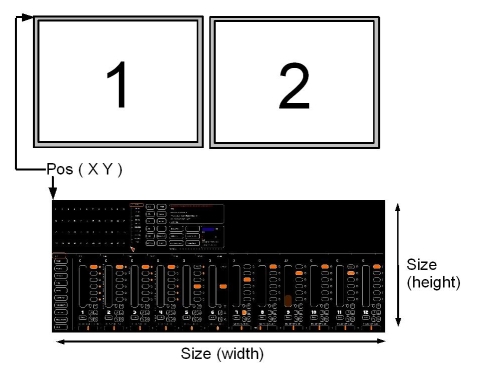
- click [Program Position] to set the position of the White Cat window on the desktop. Changing this will require a restart of White Cat.
- Set[Program position] On - type desired coordinates - click the value to assign to (X or Y)
Example: You want to set White Cat on a second monitor only, which allows you to use the primary display for another app. The resolution of the White Cat Monitor is 1024×768. You will need to set White Cat in X: 1024 and Y: 0.
WHITECAT window
PANIC PROCEDURE
In case of hugely incorrect values, such as:
- position Y at 3000 pixels, out of screen
- or Y size at 150 pixels making all the main icons disappear
- quit the program [CTRL][F12]. Your show will be saved normally.
- go with windows explorer in folder White_Cat/user/
- edit with notepad or wordpad config_screens.txt
- see first line legend and edit manually the value to change on second line
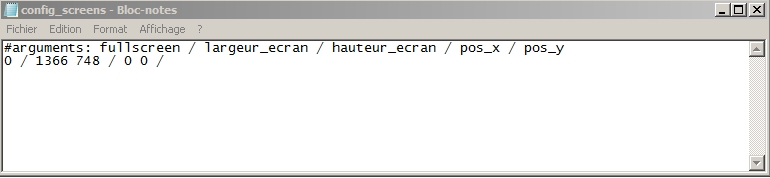
- The first 3 arguments are On/Off: AUTO FULLSCREEN BORDERWINDOW
Enter 1 for On, 0 for Off
- Second series of args are size definition of White Cat (here 1280 pixels x 800):
Enter instead the desired value
- Third series is setting position of White Cat window (upper left corner) in the desktop
Enter instead the desired value
! Be careful of the syntax while editing: respect space between two values or between a value and the slash (see image here )
COLOR THEMES
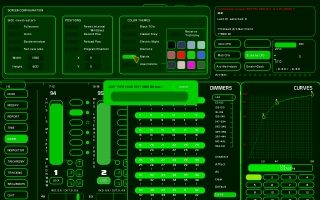
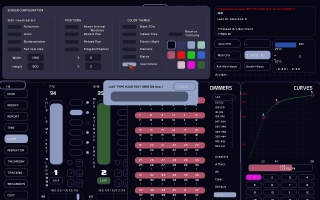
Predefined themes
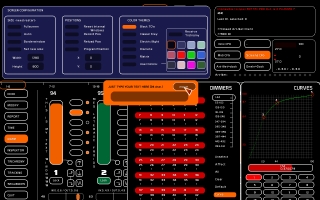
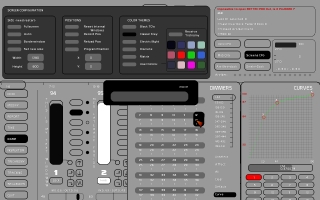
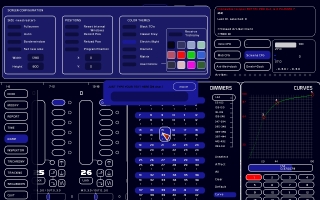
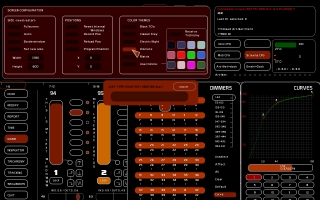
You have the choice between 5 built-in color themes and 1 that is completely user customizable. By default, White Cat is in “Black 70's”.
Other themes of the beta are not defined, you can propose new ones thruthe forum :
- file “user_color_profile.whc” is located inside white_cat/saves/last_save/
- send it to the Forum, Themes section with a snapshot, and the name of this theme.
To choose a theme to apply, click its box.
User customizable theme
Colors of the interface are customizable, for question of luminosity or discreet needs.
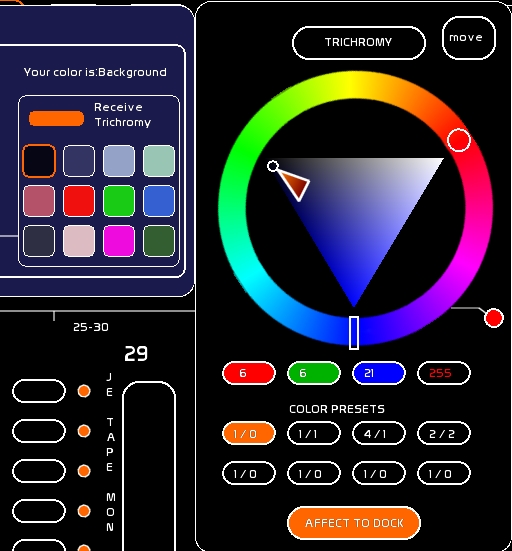
To edit colors:
- Set on Trichromy window.
- Set [AFFECT TO DOCK] ON
- Set [Receive Trichromy] ON
- the selected color will receive the color from the saturation triangle
- click each color to edit them
! Above colors are shown what this color mainly corresponds:
- Background
- Lines
- Fader
- Selected
- On mouse over
- Levels
- Back Levels
- Blind
- Lock
- Config
- Procedure
To create a theme, the mix is essentially based on Background/ Lines / Fader / On mouse over.