Table des matières
How to Manually Create Your Memories
There are many methods and two major approaches: Direct Channel or lighting states on Faders.
You get to choose the approach that works best for you.
Direct Channel Approach
- You are the proud owner of a motorized control surface like a BCF2000 or iControl Pro.
- You typically create your cues manually using knobs and sliders
- The idea will be to use 8 faders to work in direct channel mode.
- And create two bangers, which will allow you to change which of your various channels the 8 faders will control
Direct CH Assignment

- Open the Faders window [F10]
- Click the Direct CH button on the topbar and click it a second time to get into the x12 mode so that you can assign all your channels at once
- Select the first channel you plan to assign
- Click the dock to assign it to (for example Fader 1, dock 1) and the next 11 channels will be assigned to the same dock (1) of the next 11 faders (2-12)
* Do this operation as many times as necessary .
See: Fader Space
Creating a group of Minifaders
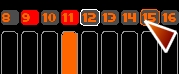

- Open the MiniFaders window [Shift-F10]
- Select the radio buttons for the 8 faders you are interested in assigning to the 8 sliders on your control surface
- Press F1
- Click the Preset in the MiniFader window that you want to assign to (for example 1).
- Click [Unsel] in the minifaders window. The selection is removed
- Check to verify that clicking Preset 1 will recall your first selection
See: Minifaders Window
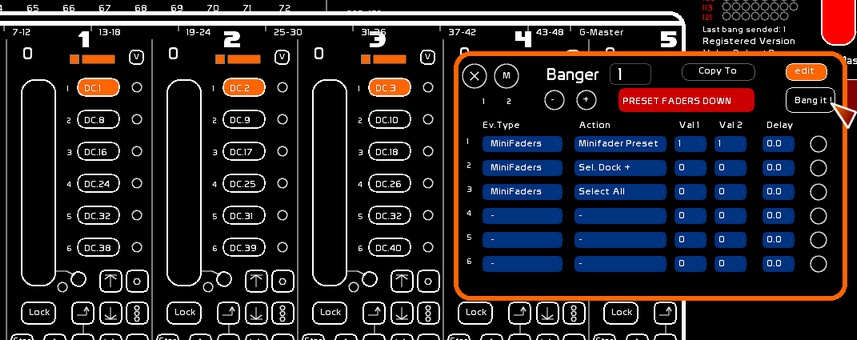
Creating Dock + and a Dock – in the Bangers
- Open the Banger window [F11]
- Edit the first banger:
- First event: Minifaders> MiniFader Preset> Preset the num Val1 (1)> Val 2 (1) to select rather than deselect (0)
- Second event: Minifaders> Sel Dock+
- Third event: Minifaders> Unselect All (Select All and set Val2 at zero)
- Click the [COPY TO] button in the Banger window to copy this banger (1)
- In the Banger summary table (top right on the screen), Click on the target banger (the one to copy to, for example Nr 3)
- Navigate back to the Banger window and select for editing the Banger copy (3)
- Edit the Second event: Minifaders> Sel Dock-
Manually by running these two bangers so you will vary the position of the dock on your selected eight faders, thus changing which channels the faders will control (this is the whole point of Direct Mode CHAN).
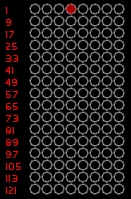
See: Banger, the Events Manager
Last button on the box
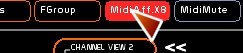
- In [MENU CFG]> MIDI> MIDI Devices, plug in IN and OUT (two columns) assign your BCF
- Assign midi via MIDI ASSIGN 8 faders
- Assign midi two the bangers
You now have to refresh the function of your knobs Direct CH to get the new selection of channels.
See: Midi Configuration and Midi Assignments
Saving Modifications to memories
Shortcuts CTRL F1 and SHIFT F1 will allow you to create memories in the CueList and to record modifications to those memories. Scrolling through the cue list will be echoed to your knobs.
See: CueList
Reusing this set for each show
Use [SAVE] in [CHOICE] mode to preserve faders assignments, or you can create a template show to reload for a new show.
See: Save Window
Faders Approach
You create your lighting states with large groups of channels or pre-built lighting states and not with individual channels.
You do not have a motorized surface and you do not need to physically manipulate a control knob for each channel.
- You rely on the structure of Faders
- You are in HTP mode relative to the CueList which is also in HTP mode.
In the faders you load:
- Lighting states via [F1]
- Links to memory
- Dynamic content
You will use the SHIFT F3 or CTRL F3 for the creation and modification of memories, taking into account the levels from the CueList buffer AND levels from the faders.
See: Faders Presentation and Fader Space