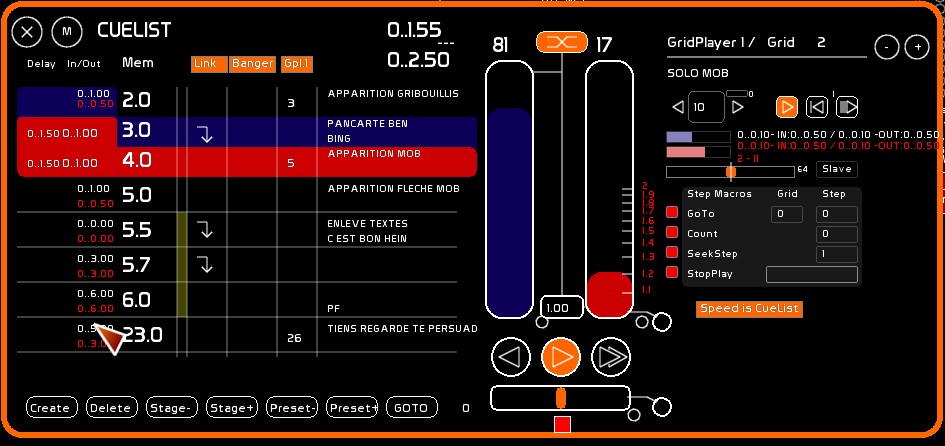
Table of contents
The Cue List (CueList)
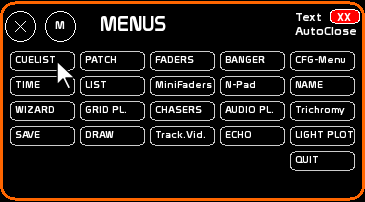
To open the cue list:
click [CueList] or press [F9].
Definition
- The cue list is a cue manager.
- Light states are stored in cues.
- These cues can be recorded with a numeric label (cue 1, cue 125.5, cue 999).
- They range from cue 0 to cue 999.9.
- They are automatically kept in ascending order.
- Between each whole number there are 9 insert cues, “point cues”: .1 .2 .3 .4 … up to .9.
- A fade time from one cue to the next is assigned to these cues. This fade is called a crossfade, or transfer.
- This move from one cue to the next can be done in several ways:
- by hand, with the mouse or a midi interface with faders;
- by firing a Go, which launches the crossfade on the recorded time base.
- This cue list runs in parallel with the channel activity of the faders.
- When you manipulate channels by selecting and raising their level with the mouse or the arrow keys, you act on the cue on stage.
- When you manipulate channels by selecting and raising their level with the mouse or the arrow keys in BLIND, you act on the preset, the upcoming cue.
- Between HTP channels whose levels are controlled by the cue list (shown in blue) and those whose levels are controlled by the faders (shown in orange), the highest level is taken and sent to the DMX interface.
Overview of the Cue List interface
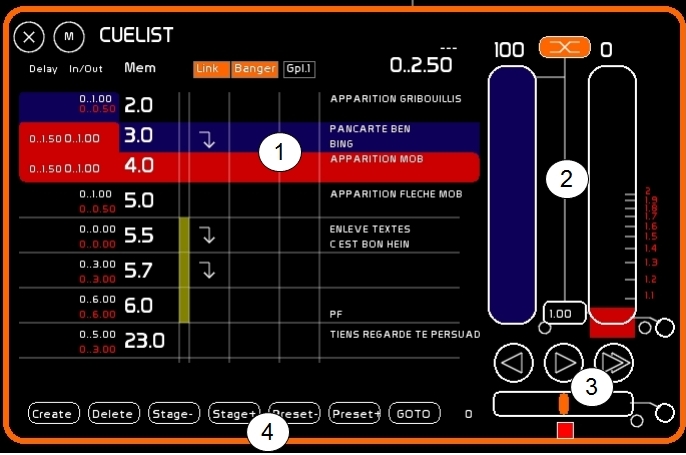
1 — The cues area, where the following are shown, from top to bottom:
- the cue preceding the cue on stage;
- the cue on stage, on a blue background;
- the cue in preset / blind, on a red background;
- 6 further cues after the preset cue.
These cues are shown, from left to right:
- with the delay time and the crossfade time;
- the cue number;
- whether it is linked or not (the link appears with an arrow);
- whether an automation is embedded (Banger), with that automation's number displayed;
- the cue's description.
2 — The crossfade area:
- the master of the cue on stage, in blue;
- the master of the cue in preset, in red;
- the ratio button for a manual crossfade.
3 — The Go area:
- the three Go buttons: Go Back, Go and DoubleGo;
- the crossfade accelerometer.
4 — The operations area: creating / deleting a cue, and fast navigation on stage or in preset.
Basic operations
Creating a cue
- Build a light state, on stage or in preset.
- Type a cue number (e.g. 27.5).
- Click [Create] or press [CTRL][F1].
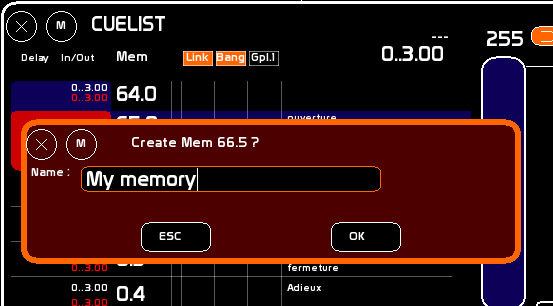
- In the confirmation window, you can enter a name or a description.
- Confirm by clicking [OK], or by pressing [Enter] or [F1].
Deleting a cue
- Type the number of the cue to delete (e.g. 27.5).
- Click [Delete] or press [SHIFT][DEL].
If no number is typed, whether you are in Blind or not defines the cue on stage or in preset as the cue to delete.
Re-recording a cue
Re-recording on stage or in preset
Re-recording the cue includes every channel present on stage, or in preset if you are in Blind mode.
- Change the light state on stage or in preset.
- With the mouse:
- engage STORE mode (click [STORE] or press [F1]);
- click the cue number where you want to record this light state.
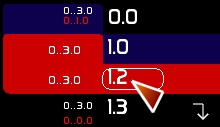
- With the keyboard: press [CTRL][F1] to re-record the cue on stage, or in preset if you are in Blind mode.
Re-recording a cue other than the preset or stage one
- Type the cue number.
- Press [SHIFT][F1] to re-record that cue on the fly.
Selective modification of a cue
You may need to record only the state of one or several channels.
For example, during a show you notice that, across the next 3 cues, channel 65 is 20 points too strong.
Rather than navigating through the cues and re-recording them with a series of operations, do the following:
- Select the channel(s) at the desired intensity.
- Engage [MODIFY] mode by clicking [MODIFY] or pressing [F2].
- Click the cue to modify.
- Repeat steps 1, 2 and 3 for the following cues.
Recording a cue combining Faders and levels
A cue can be recorded taking into account the output of the Faders as well as that of the cue list.
With the mouse, in the cue list window:
- Engage [REPORT] mode by clicking [REPORT] or pressing [F3].
- Click the cue to modify.
! If you are in the Blind position, the Faders will not be brought down.
With keyboard shortcuts (only possible on stage):
- Creating a cue:
- type the number of the cue to create;
- press [SHIFT][F3];
- name it (optional) and confirm.
- Modifying a cue (only the cue on stage):
- press [CTRL][F3];
- confirm.
Quickly copying a cue to another
Using [CTRL][C] and [CTRL][V].
What is copied: the channels, the description, the annotation, the times, the link and the banger embedded in the cue.
If the numeric entry contains digits (here 32), they are treated as a cue to recall, no longer as channels to copy:

- Type the number of the cue to copy (here 25).
- [CTRL][C] (note, in the feedback area, that “Mem. To Copy” shows the cue to copy).
- Type the number of the cue to create or replace (here 32).
- [CTRL][V].
- Confirm.
Fast navigation, CUT
Fast navigation lets you move through the cue list without a crossfade.
You can move directly on stage:
- with the mouse, by clicking [Stage -] or [Stage +];
- with the keyboard, by pressing [CTRL][W] or [CTRL][X].
The cue list will be refreshed.
Or move through the preset cues, without touching the cue on stage:
- with the mouse, by clicking [Preset -] or [Preset +];
- with the keyboard, by pressing [SHIFT][W] or [SHIFT][X].
GOTO: loading a cue typed on the keyboard
Loading with the mouse
- Type the cue number on the keyboard and load it by clicking:
- either on the cue number on stage;
- or on the cue number in preset.
This operation is possible during a crossfade, or while paused. Re-firing the Go will take this cue's times into account.
This operation is not possible on stage.
Sending cue 0.0 is possible in the preset cue, but absolutely not on stage.
Loading with the GOTO button
Using the [GOTO] button, you load only the cue number into the preset.
- Type on the keyboard.
- Click the [GOTO] button (or use midi).
Assigning times
Times are always assigned in the logic of the preset cue. Indeed, the preset cue holds the out time of the cue on stage, as well as its own in time. So you must think Preset.
Assigning a time therefore means assigning the in time of the cue you have chosen, and the out time of the cue that will precede ours, whatever it is.
Time assignment can be done differently:
- if you assign the times of a cue on stage or in preset;
- or if you assign the other displayed cues.
Changing the times of a cue on stage or in preset
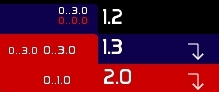
If you want to assign the times:
- of an upcoming crossfade, you assign the time of the preset cue (in red);
- of the last crossfade performed, you assign the time of the cue on stage (in blue).
This change of times can be done in two ways:
- using the Time window, and clicking, in [AFFECT] mode, the preset or stage cue number to assign:
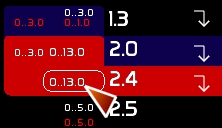
- by typing its time directly on the keyboard, as seen in the conventions (e.g. 1..23.), and clicking the IN, OUT, Delay IN or Delay Out time figure of the preset:
Changing the times of another cue
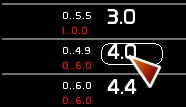
… appearing in the cue list:
- using the Time window, and clicking, in [AFFECT] mode, the cue number to assign.
Giving a cue a description
Since version 0.9.1, you can give a name or a description when the cue is created (see “Creating a cue” above).
Otherwise, you have 2 ways to name or change a cue's description:
- The classic way: open Name mode, type the description and click the first or second line of the description of the cue to assign.
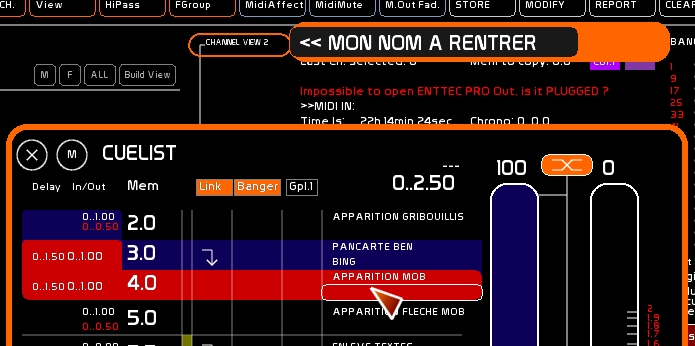
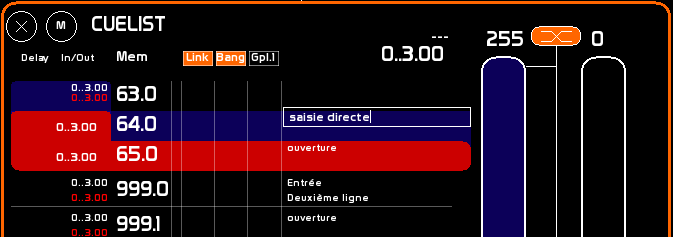
- Since version 0.9.1, you can double-click the first or second line and write / edit the text directly. Finish by pressing [Enter].
Manual crossfade
There are two types of manual transfer:
- the mouse transfer;
- the midi transfer.
Manual crossfade with the mouse
When the chaining icon is engaged, raising the preset master will lower the master of what is on stage. And vice versa, in a completely linear way.
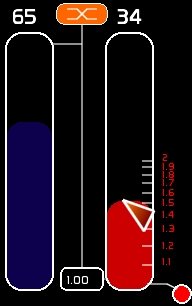
However, many of us use, on a manual desk, the anticipation technique: the preset master goes up, and once the lights it contains are established on stage, you start lowering the stage master. A single mouse control makes this anticipation impossible…
For this, you set the ratio. This ratio (here value 1.47) lets you lower the stage master only once the ratio is reached in preset (red figures to the right of the preset master). The stage master then comes down proportionally to the ratio and to the rise of the preset master.
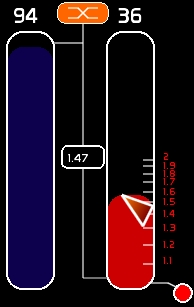
! This ratio is absolutely not taken into account in a midi crossfade or one launched by a Go.
Manual crossfade over midi
See Midi Configuration and Midi Assignments.
Stage masters (blue) and preset masters (red) can be assigned over midi. They are driven by a Control Change signal.
- If the [continuous Xfade] mode is not engaged, at the end of a crossfade, remember to bring your Stage / Preset faders fully up.
- If the [continuous Xfade] mode is engaged, you can crossfade in both directions.
The engaged dot lets you send the midi signal of these faders out to external devices.
Crossfade with GO
The Go crossfade takes into account the times recorded in the preset, depending on the accelerometer.
The times shown in preset are those modified by the accelerometer.
If an In or Out delay time has not elapsed during the transfer, the bar of the master concerned blinks red.
To fire the GO, a crossfade on the recorded time base:
- with the mouse: click the central arrow of the GO;
- with the keyboard: press the [SPACE] key.
To pause the running crossfade, click the GO again or press [SPACE] again.
To do a GO BACK, a step backwards:
- with the mouse: click the left-pointing arrow of the GO BACK;
- with the keyboard: press [CTRL][SPACE].
To do a DOUBLE GO (skip the current crossfade and launch the next one):
- with the mouse: click the right-pointing double arrow of the DOUBLE;
- with the keyboard: press [SHIFT][SPACE].
Go Midi ForceMode
Force Mode only applies over midi (for control by applications such as Live, for example). Go to MENU CFG > GENERAL to enable it.
It enables / disables the ForceMode of the midi control of the Go. If this mode is ON and the crossfade is running, pressing the Go key over midi will not cause a pause, but a JUMP. Valid only for midi, not for the keyboard nor the arduino.
When ForceMode is /On, the Go is outlined in green.
Excluding cues from the cue list
If, in rehearsal, you need to take cues out of the cue list's run without deleting them, you exclude them:
- click, next to the cue, the first strip;
- a cue excluded from the cue list has its box blink yellow.
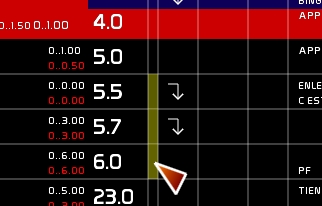
To bring the cue back, click the box again.
Cue Links
By activating the [Link] dot with a click, you allow, during a Go crossfade, the direct chaining to the next crossfade.
When [Link] is active, if the cue arriving on stage contains a link, the next crossfade is fired automatically.
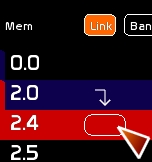
Assigning/removing a Link on a cue
Click next to the cue, under the Link column.
Enabling Link mode
Click the [Link] dot at the top of the Cue List window.
Banger: automations and advanced running
On the Go, the selected banger is fired as encoded in Banger, the event manager, with a chosen trigger delay and the recorded effects.
Banger lets you create channel-time effects through fader control. This allows you to create a crossfade at several speeds, using the ability of LFOs to raise or lower a Fader on a time base. Banger can also drive external software via Midi Out. It can also open certain dynamic windows and prepare presets (Trichro and Tracking).
Assigning/removing a Bang on a cue
Type the Banger number to choose, and click next to the cue, under the Bang column. To clear a cue's bang, choose 0 as the bang number.
Enabling Bang mode
Click the [Bang] dot at the top of the Cue List window.
Double cue list
The 4 GridPlayers can be used through Banger in the CueList, allowing the construction of effects that can be fired on the Go.
The GridPlayers' structure is equivalent to parallel cue lists. To make handling a GridPlayer easy while running a show, you can embed GridPlayer 1 into the CueList. You will benefit from the Go Back, Jump and fast-navigation (W/X) functions, as well as the accelerometer control.
Even when embedded in the cue list, GridPlayer 1 is still assigned to a Fader. The output of GridPlayer 1 therefore goes into the faders buffer (orange channels).
To activate GridPlayer 1 in the CueList, click the [GPL1] box in the cue list.
Its window expands, giving access to the general handling functions of a GridPlayer, excluding the matrix.
See the GridPlayers documentation and the double cue list section.