Table des matières
Save: binary saving, and export/import
!There are major changes in the save window in 0.8.2.2 version
There are 2 types of data saving:
- binary saving which is in White Cat Data Format.
- import/export as text formatted files.
There is also pdf export, to use paper sheets of your show for touring or physical back-up.
Binary saving
Classic save
Shows are saved in White_cat/saves/ folder.
On each opening White Cat loads the show recorded in last_save. The show location is /saves/last_save/.
Last_save is the working session.
When you record a memory, use the patch, … all modifications are done in patch.
By pressing [Ctrl-S] (quick save) or when quitting White Cat, data will be saved in the working session folder: last_save.
When you use [SAVE], you are just pointing to a new folder to save to or load from.
The save action is just doing a back-up, where you save your show to another name.
When you have made major changes to your show (patch, memories recording, fine tuned memories during rehearsal, etc…) it is recommended that you save a back up version of your show.
When you quit White Cat, an automatic save is done in the working session folder: last_save. Back-up content is not touched at all.
You can save or load this binary back-up in a complete manner (all files) or a partial one (loading only the patch, or midi attributions, or memories, etc…).
Importing a Schwartzpeter show
You can import a binary show in Schwartzpeter's file format in its entirety.
To do this copy/paste the Schwartzpeter's show folder in WhiteCat/import_export/:
* for example the folder called CARMEN in Schwartzpeter/saves/
* will be Whitecat/import_export/CARMEN/
A Schwartzpeter import is very simple and you should be able to load all shows from 0.7.x versions onward. When importing you load the following contents: memories, autogo's, memory descriptions, times, patches, shadow subs reported to faders. Because of the way the chasers in White Cat are encoded, your Schwartzpeter chasers will not be imported.
Text saving
You can import or export data. Files will be saved or loaded from the import_export folder. To import a file, or get the export you have made, go to WhiteCat/import_export/.
ASCII
White Cat saves and loads ASCII shows. ASCII is a protocol which enables you to exchange shows between different lighting boards.
When importing ASCII, the entire show in RAM will be cleared.
The following are read:
memories
| CUE 1.0 | Memory |
| TEXT DESCRIPTION MEMORY 1 | description |
| UP 1.0 | Fade IN time |
| DOWN 5.0 | Fade OUT time |
| $$WAIT 0 | White Cat considers as link when time is > 0 |
| CHAN 7/H52 10/H61 35/H4C 100/HAE | Channels in hexadecimal. |
It is possible that on certain ASCII exports, control boards generate channel levels with the following syntax: 7@H52 or 7=H52. In this case, just replace using Notepad “@H” with “/H” using the replacement tool.
/H syntax is used by AVAB and ADB. The choice has been made in White Cat to stay with one ASCII protocol only.
electronic patch without curves
| PATCH 1 6<1/HFF 21<2/HFF | Patch of Universe 1, dimmer 1 assigned to channel 6 , max 100%, dimmer 2 to channel 21 max 100% |
With certain manufacturers, like RVE, syntax for the patch is 1<1@Hff instead of 1<1/Hff. Use Notepad to replace @ with /.
subs containing channels
| SUB 1 | Sub 1 |
| TEXT description | text description |
| UP 5 | Fade IN |
| DOWN 5 | Fade OUT |
| CHAN 17/HFF 18/HFF 19/HFF 20/HFF | channel contained |
White Cat receives SUBs up to Sub 288 (48 faders x 6 docks). Sub 49 will be stored in Fader 1, Dock 2. Sub 96 in Fader 48, Dock 2. Sub 97 in Fader 1, Dock 3 etc…
AVAB seems to use GROUP instead of SUB, enabling memory load. But Time seems not to be included. For now GROUP will not be read.
You can just export pdf files. They contains your complete show, with all its attributes, in a fully featured PDF file, to archive or to use while touring.
Saving a show, loading a show / Classical binary operation
Quick saves
You can save your show quickly as last_save by pressing [CTRL][S].
When you quit White Cat, an automatic save is done under last_save:
- click [QUIT]
- type [CTRL][F12].
If you want to quit without saving in last_save, hit [SHIFT][F12].
Using Save menu
To save or load a show under another name, click [Save].
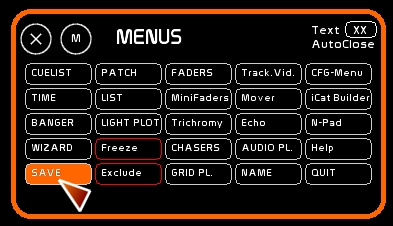
Save window pops up and shows 2 menus:
- left: binary save/load
- right: import/export
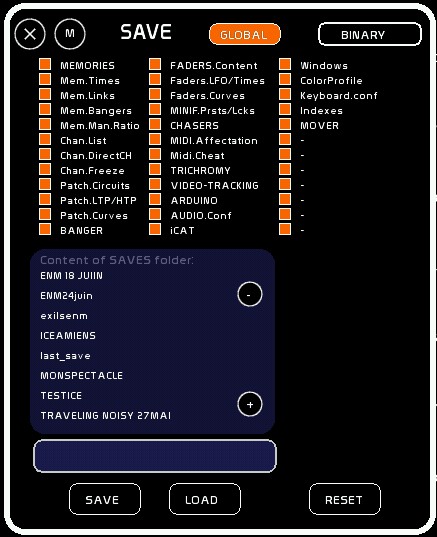
BINARY SAVING CLASSICAL
Be sure that [GLOBAL] is checked. If it is not, your show will be saved/loaded in a partial manner.
Save under other name
- click [NAME]or press [F5].
- Type the name of the show. Please avoid spaces and dots.
- A correct name will be: thenameofmyshow. the name of my show or my.show are not valid and may make it hard for White Cat to find your show.
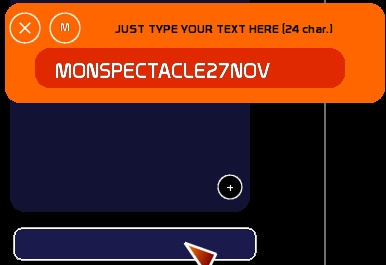
- Click the Name space of the show:
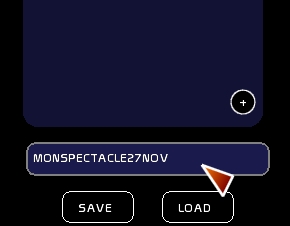
- click [SAVE]
- Saving Feedback window will pop up if something went wrong: files concerned will appear in red.
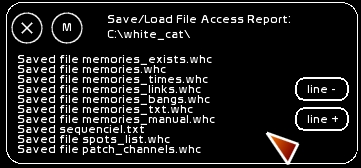
Save on an already existing name
- click name of the folder
- click [SAVE]
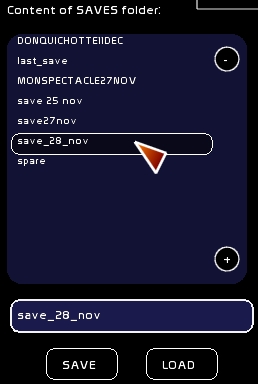
Loading an existing backup
You don't need to type its name:
- click the name in the folder
- click [LOAD]
BINARY SAVING / ADVANCED
It is possible to save or load a show in a selective manner (just loading memories, and not a patch, or midi config etc…).
- toggle [GLOBAL] to [CHOICE] by clicking with the mouse.
- select what you want to save/load:
- Memories: contents, texts, annotations, destroyed memories indexes thruth wizard and shift-del action
- Mem.times
- Mem.Links
- Mem.Bangers
- Mem.Man.Ratio: manual ratio recorded inside a memory fro mouse-crossfading
- Chan.List: [LIST] description
- Chan.DirectCH: Direct Channel affectation to docks
- Chan.Freeze
- Patch.Circuits
- Patch.LTP/HTP
- Patch.Curves
- Banger
- Faders.Content: content of docks included dynamic links
- Faders.LFO/Times
- Fader.Curves
- Midi.Affectation
- Minif.Prsts/Lcks: minifaders selection presets and lock presets
- Chasers
- Midi.Affectations
- Midi.Cheat
- Trichromy
- Tracking
- Arduino
- Audio.conf: audio folder
- iCat
- Windows: opened windows and positions
- ColorProfile
- Keyboard.conf: keyboard mapping
- Indexes
- Mover

- select a show (by mouse selection or by typing the name with [F5])
- click [SAVE]
Binary loading/advanced
- do as previously shown
- click [LOAD]
RESET: A new virgin show
You can reset the show in memory in the following ways:
- all the show in RAM ([GLOBAL])
- part of the show in RAM ([CHOICE] and select what you want to be reset: faders/memories/patch, etc….)
- Click [RESET]
This will never affect the shows recorded on HDD. A reset is only done in RAM.
Here everything except Midi assignment and screen orientation ( Misc.) is selected:

IMPORT EXPORT
Selection of the type of data to import/export
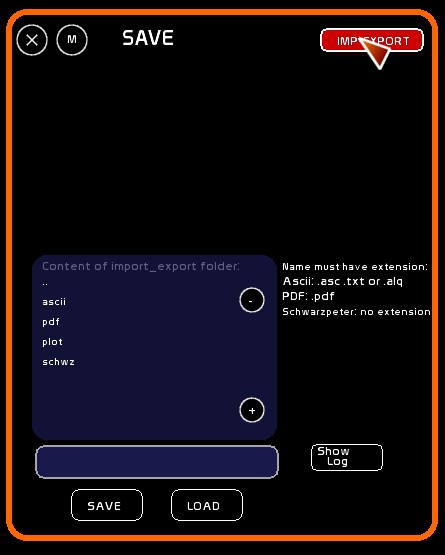
There are 3 types of data you can use for import/export, recognized from their extension:
- ASCII: .asc, .txt, .alq
- PDF: .pdf
- Schwartzpeter: no extension
The export will be done from the show in RAM.
- choose the show to load or save by clicking in the list of the import_export folder
- or give it a new name with [NAME] (or [F5]). Type the extension after the name, depending of the type of data.
- click save or load will depend on the type of data:
- ASCII: save AND load
- Schwartzpeter: load only
- Pdf: save only
Here the name typed is followed by an .asc extension.