Table des matières
Minifaders window
Global presentation
Minifaders is a window allowing you a global view of the 48 faders. These 48 minifaders represent the same faders as in Fader space.
To access the Minifaders window, press [Shift-F10].
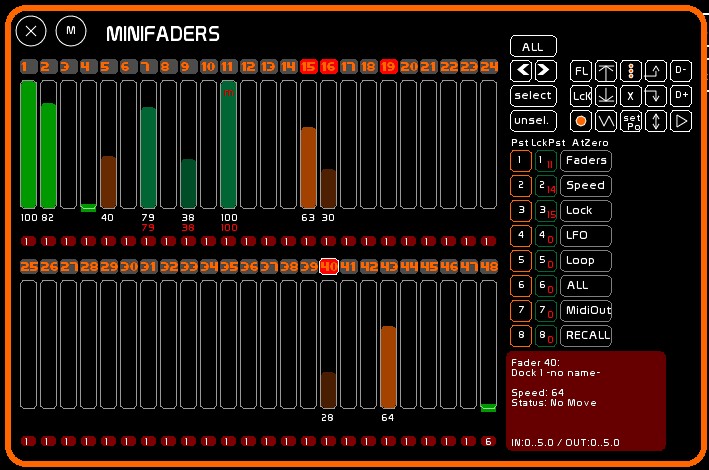
A certain number of actions may be performed which are identical to actions in Fader space:
- manipulation of the faders
- midi assignment
- recording content to the active dock, as well as text and times
The process is however different. You first need to select a minifader in order to achieve the following actions:
- Up/Down/Saw
- Loops and Loop Modes
- Flashes
This selection system for the faders naturally brings up another thing peculiar to minifaders:
- selection presets (1-8).
- selection arrows and selection commands for minifaders
Acting on a minifader

Minifader description from top to bottom:
- a button to select/unselect it, which is used with selecting preset assignments
- the fader itself (slider)
- the level of the fader (in white here), but which appears in red if the lock mode is engaged
- Flash Button, which displays the number of the active dock, and it displays a * if the active dock is in Loop mode
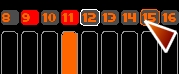
When rolling the mouse, the button immediately below the mouse appears outlined in orange. When a minifader is selected, its selection button turns red. The most recently selected minifader always appears outlined in white.
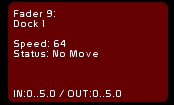
A description is refreshed after level manipulation or upon selection of a minifader, showing the content of the active dock. Descriptions and times of the active dock are also displayed.
Recording functions, and classical manipulations
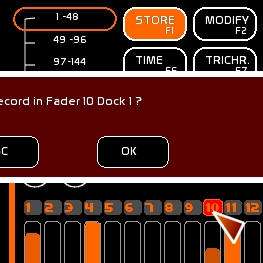
This is exactly the same as it was in Fader space, you can record (F1), clear (F4), modify (F2), report (F3), name (F5), give a time (F6) and assign dynamic content, by clicking on the selection button of the fader with the proper command ON .
The active dock is affected.
Minifaders selection
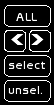
To select a minifader, click its selection button. You can also click the arrows buttons [<] [>] or use [Select], [Unselect] or [ALL] to select all 48 faders. These 4 commands are assignable in midi.

By clicking [STORE] or pressing [F1] you can record your selection set (selected group of faders) to one of the eight presets. [F1] [F2] and [F4] also work with the minifaders presets.
Clicking on one of the preset buttons (1 to 8) will activate and select all members of the selection set stored there.
Acting on minifaders
Classical commands
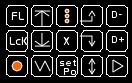
When you select a fader or a group of minifaders (manually or by using one of the 8 presets), the following actions are now possible on the selection set:
| Flash | Up | All Dock Loop | Prev Dock | Dock - |
| Lock | Down | At Zero All | Next Dock | Dock + |
| Loop Dock | Saw | Stop Position | Up and Down | Play of embedded chaser |
For more details about icons and functions see Fader space. The All At Zero of this short menu is peculiar in that it sets everything to zero (or default position) in the selected faders: LFO type, level of the Fader, LFO speed, Loops and special modes of LFO.
Lock Presets
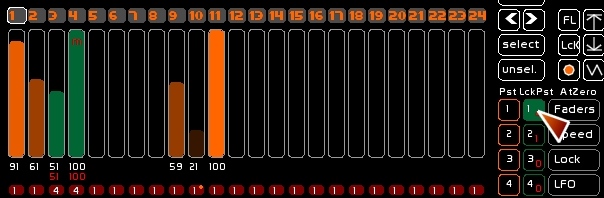
You can record a Lock Preset containing the lock state of the all of the 48 faders. This recording doesn't take care of selected or not selected the minifaders.

Lock states are recordable in one of the 8 Lock Presets.
You can then recall them easily with one click or from a midi key press.
Recording a lock state
- Set the desired faders to lock mode
- press [F1] or click [STORE]
- Click the lock preset
Clear a lock preset
- Press [F4] or click [CLEAR]
- Click the lock preset
On/Off of a lock preset
- Clicking the preset will toggle it on and off
- Be aware that when setting the Lock Preset, the Master Lock fader needs to be set at Full! While creating Lock Presets, be sure to use an empty dock as your Lock Master.
All At Zero
Unlike previous versions of White Cat, All At Zero now only affects selected minifaders.
This allows you to set faders to zero in a selective manner.
When doing this, a snapshot is taken of the beginning states of those faders, which enables you to restore to their previous states by using the [RECALL] command.
This should only be used for concert situations because it acts instantly without fading.
Description of All At Zero functions:
- [FADERS]
Faders selected are set to zero level. If LFOs are present, without looping, they will be shut down.
- [SPEED]
Accelerometers of the selected faders will be set to 64 (normal speed).
- [LOCK]
Selected faders will be set to LOCK OFF
- [LFO]
LFOs of selected faders will be set to OFF.
- [LOOP]
LOOP will be turned off for all active docks of selected faders
- [ALL]
All those modes together
- [MIDI OUT]
Midi OUT will be turned off on the selected faders
- [RECALL]
While doing the action [ALL AT ZERO] described here, a snapshot is taken in RAM. You may then restore to the previous state (before the ALL AT ZERO function).
Creating Fader Groups
You can create Group Faders (FGROUP) by setting the (enslaved) faders to off.
FGROUP is a fader that contains the results of other faders that have been assigned (slaved) to it. The Fgroups function as submasters and are only HTP.
To create an FGROUP:
* Select the faders to be assigned to the group in the minifaders window, and remember to set these (enslaved faders) to off.
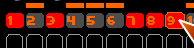
* Click [FGROUP]

- Trigger (F1)
Assign a dock
In the Minifaders window:
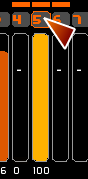
* Click the fader number of the fader you want to use as the FGROUP submaster.
In the Faders window:
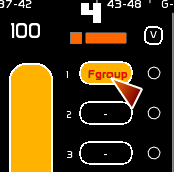
* Click the dock of the fader you want to use as the FGROUP submaster.
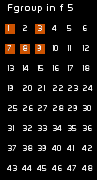
In the Minifaders window, you can see the overview of the contents of a FGROUP.
Midi Assignment
- Click [CFG MENU] > Tab [MIDI] > Page [MIDI AFFECTATION]
- Click the attribution mode (solo or x8)
- Roll the mouse over the command target (it will appears with red outlining)
- Press the midi key (on the control surface) that you want to use for this action and hold it
- Click the command target to assign it to the midi signal