Table des matières
MANIPULATING THE CHANNELS
Whether you are in [Classical] or [Channel Views] all these actions can be performed:
Select a Channel
With the mouse:
- To select or deselect a channel, click it
with the keyboard:
- Selection: Enter the channel number and then press [+].
- Deselection: Enter the channel number and then press the [-].
! Note that any string you type is displayed in the information feedback area. 145 here .
! Note if channel 21 was called, the feedback area would say: Last Channel Selected: 21.
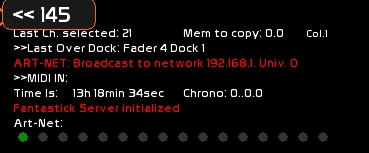
- The syntax of reverse Polish notation (RPN) is used to call channels and set intensities, and this can also be entered on a touch screen, using the Num-Pad (virtual keypad).
Set intensity for the selected channels
with the mouse:
- Roll the mouse wheel upward
If you are in percentage mode, the selected channels will increase by 1% for each mouse click. If you are in Dmx mode, it will increase by more than 1 dmx point.
with the keyboard:
- Enter the desired intensity and press [ENTER]
! AT FULL keyboard shortcut: Press [I]
! AT ZERO keyboard shortcut: [O]
Think about it as an ON/OFF (I / O) switch 
using both keyboard and mouse:
- Enter the desired intensity and click [AT]
using the level wheel (see Num-Pad ):
- The wheel is controllable in midi.
General deselection
You can deselect all selected channels at once:
with the mouse:
- Click [ESC]
with the keyboard:
- Use the Escape key [ESC]
This feature is important because it also clears the entire chain of commands.
Next Channel
Use the [LEFT] and [RIGHT] arrows to select the previous or next channel.
[CTRL][LEFT] or [CTRL][RIGHT] to select the previous or next channel and set to full.
If the Patch window is open, dimmers assigned to this circuit will be selected.
Multiple selections
Select all active channels
with the mouse:
- Click [ALL].
with the keyboard:
- Press [Y]
Inverted selection: select all inactive channels
with the mouse:
- Click [INV]
with the keyboard:
- Press [U]
Linked selection: select a continuous range of channels
with the mouse:
- Select the first channel
- Click [TO], it remains lit. Select the last channel in the selection
with the keyboard:
- Call and select a channel [1] [2] [+]
- Type the number of the last channel of the selection: [1] [8] [TAB]
Now channels 12 thru 18 are selected
Create a Blackout and deselect all
This function is particularly useful for cleaning Channel Space when setting up cues.
with the keyboard:
- Press [F12]
Copy Paste Channels
Channels can be copied and pasted on Stage or in preset (mode BLIND, where you are changing the buffer of the memory to come)
with the mouse on num-pad:
- select the desired channels
- click [COPY] to copy to memory
- click [PASTE] to paste the selected memory to the buffer (Stage or Blind)
with the keyboard (to Stage or Blind):
- [CTRL][C] to copy to memory
- [CTRL][V] to paste the selected memory to the buffer (Stage or Blind)
! On stage you can copy the values of the selected channels (from the memory buffer), and also those from the faders buffer (in orange).
! In Blind, only values from the memory will be copied.
Recall channel settings from another memory (GET)
with the keyboard (Stage or Blind):
- Select channels
- Type the number of memory
- Press [CTRL][G]
Information about what will happen to the channels in the next memory (the one in preset)
A circuit whose intensity will rise in the next cue is assigned a small + .
In contrast, a circuit whose intensity will go down in the next cue is assigned a small - .

Manipulations in Blind
BLIND Buffer
To access BLIND:
- Click [BLIND] at the top right or press [CTRL-F11].
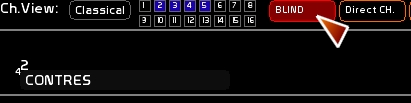
BLIND is the buffer where the lighting state of the 512 channels for the memory to come in the next cross-fade is stored. You can also call any other memory into this editing area.
It is a space where you can manipulate all 512 channels of whatever memory you are working on. The result does not appear on stage, as it is done in this preset, which is why it is referred to as blind.
If you do not use the CueList buffer, BLIND can be used to create faders blind
Go to the Patch
See Patch
View, a special mode
VIEW is a mode that allows you to view the contents of a container (Fader dock, dock-color, memory, dock-tracker). It can also display which fader is responsible for the highest level on of that channel.
- Click [VIEW]
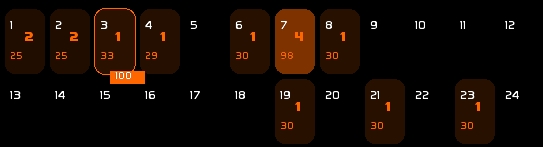
As you can see in the image above:
You are viewing the contents of the dock (that the mouse most recently hovered over) showing its intensity and other attributes.
- That channels 1 and 2 are controlled by Fader 2, channels 3,4,6,8,19,21,23 are controlled by Fader 1, channel 7 by Fader 4.
- View shows which fader gives the highest level to the channels.
!Same channel can be controlled by various faders, only the level coming from the fader that gives it its highest level will be displayed
BlackOut
By pressing [F12]
- you create a full blackout of everything that is on stage, from the CueList buffer.
- if you are in BLIND, it will clear all channels from the memory to come.
Freeze state for channels
It is possible to lock selected channels at their level (a projector that has come loose and is shining into the house, an encoding error, running lights backstage, music stand lights…).
- Select channels to freeze
- The frozen level is the highest level found on either the Fader buffer or the CueList buffer.
- Click [Freeze] and confirm
- If the selection is already frozen, it will be unfrozen
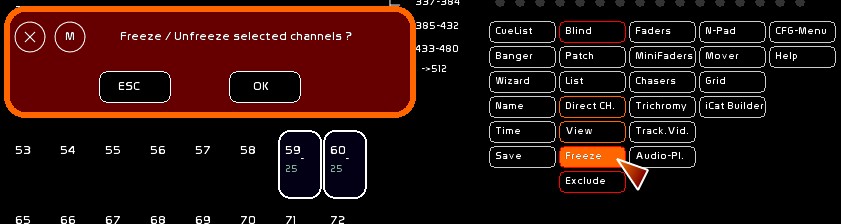
Channels that have been frozen appear as flashing red, and their levels appears in white.

Exclude channels from the action of the Grand Master
A selection of channels can be excluded from the actions of the Grand Master (color changers, blue running lights, etc …).
- Select channels to exclude from the action of the Grand Master
- Click [Exclude] and confirm
- If the selection is already excluded, it will be reincluded to be controlled by the Grand Master
Channels excluded from the Grand Master appear with a red circle in the top right.