Table des matières
CHANNEL SPACE
Select a channel:
with the mouse:
- To select/unselect a channel, click on it in the Channel space view.
with the keyboard:
- Select: Type the channel number, then press [+].
- Unselect: Type the channel number, then press [-].
!Be aware that a feedback string is printed in the feedback area with your typing and commands , here 145.
!Please note that channel 21 was called and is ready to be modified: Last Channel Selected: 21.
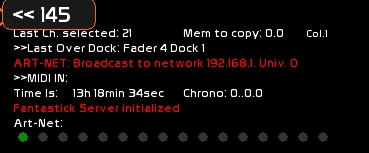
Reverse Polish syntax (RPN–where the operand follows the number entry) is used for channel calls and level setting, and it may also be used with a touch screen using the Num-Pad (virtual numeric keyboard).
Assigning a level to the selected channels
with the mouse:
- Pressing the Up or Down keys or using the mouse wheel.
- If you are in percent mode, the channel will move in 1% increments. If you are in Dmx mode, it will be of 1 dmx step.
- 1%=2.55 dmx steps.
with the keyboard:
- Type desired intensity then hit [ENTER].
- Shortcut AT FULL: press [i] directly (no [ENTER])
- Shortcut AT ZERO: press [o] directly (no [ENTER]) As a memory device, think of ON/OFF (I/O) like with switches

keyboard and mouse:
- Type the intensity and then click [AT] in Num-Pad
level wheel:(see Num-Pad )
- The level wheel is dedicated to midi devices.
Global Unselect
You can unselect all channels at once:
mouse:
- [ESC] in Num-Pad
keyboard:
- Press [ESC]
The ESC function is very important, as it also cleans up and resets the feedback string and command string.
Next Channel
[LEFT] and [RIGHT] arrow keys enable you to select the previous or next channel relative to the one selected.
[CTRL][LEFT] or [CTRL][RIGHT] will set the selected channel at Full (as a channel check function).
If the Patch window is open, dimmers, instead of channels, will be selected and navigation for a dimmer check would use [SHIFT][LEFT] or [SHIFT][RIGHT].
Multiple selection
Select all lighting channels
mouse:
- Click [ALL] in Num-Pad
keyboard:
- Press [Y]
Inverted selection: select all lighting channels that are not selected
mouse:
- Click [INV] in Num-Pad
keyboard:
- Press [U]
Daisy Chained selection: selecting a series of channels
mouse:
- Select first channel
- Click [TO] mode in Num-Pad.
- [TO] is highlighted.
- Select the last channel of the selection.
keyboard:
- Select first channel (here the number is 12) : [1][2] [+]
- Type last channel in the selection: [1][8] then press [TAB]
- Channel 12 thru 18 are now selected.
Do a Blackout to unselect all selected channels
This function is mainly used when recording cues or preparing the docks in the faders, at level setting time.
keyboard:
- Press [F12]
Copy-Paste channels
Channels may be copy/pasted on stage or in preset (BLIND mode) if you want to quickly take levels from a memory and transfer them to the current lighting state or the lighting state in preset.
mouse in Num-Pad:
- select the desired channels
- click [COPY] to copy them to RAM
- click [PASTE] to paste them to the desired memory (on stage, or in preset)
keyboard :
- select the desired channels
- [CTRL][C] to copy them to RAM
- [CTRL][V] to paste them to the desired memory (on stage, or in preset)
! On stage you copy values from the CueList Buffer (in blue) AND the values from the Faders Buffer (in orange).
! In Blind, only values coming from the Blind Buffer may be pasted (no access to Faders Buffer).
Getting channels states from another memory (GET)
keyboard (Onstage or Blind):
- Select channels to recall
- Type the memory number
- [CTRL][G]
Information about channel state in the preset memory
A channel whose intensity will increase in the next memory (BLIND buffer) will be marked with a +. A channel whose intensity will decrease in the next memory will be marked with a -.

BLIND manipulations
BLIND Buffer
To access the BLIND Buffer: just click [BLIND] from the main command panel, or press [CTRL-F11].
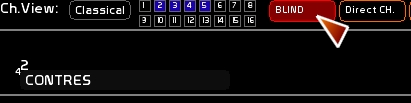
The BLIND buffer (also called Preset mode) is the place where the 512 channel levels from the “the memory to come” are stored for the next cross-fade.
The BLIND buffer is a working space where all channel manipulations may be done, just the same as with the On Stage Buffer, but the result doesn't appear on stage, which is why it is called BLIND.
If you don't use the CueList, this BLIND Buffer will be of great interest to you as it allows you to create masters on the fly, very discreetly.
Accessing the Patch
See Patch
View, a peculiar mode
VIEW is a mode by which you can see by rolling the mouse over something what is inside the container, such as the dock of a Fader, a dock-color, a video-dock, a chaser track. It enables you to see the content on the screen. It also shows which fader has the channel at its highest level.
- Click[VIEW]
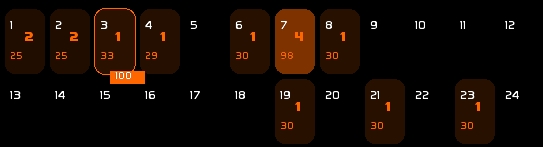
We can see in this image:
- last dock rolled over by the mouse contains which channels, and the level recorded inside is written in the Channel Space window.
- channels 1 and 2 are controlled by master 2, channels 3,4,6,8,19,21,23 by master 1, channel 7 by master 4.
- View shows which Fader is providing the highest level to the channel.
! Since the same channel may be present in different faders, only the fader providing the highest level is shown.
Blackout for the Blind Buffer
Press [F12] You will clear all channels in the preset and unselect all channels previously selected. Please note that this action is only performed on the Blind Buffer, where you will not destroy your memory by doing this.
Freezing channel states
It is possible to freeze a channel selection at a level.
- Select channels to freeze
- Level of the freeze will be the highest level found from CueList output and Faders output
- Click [Freeze] and confirm
- if selected channels are already frozen, they will be unfrozen.
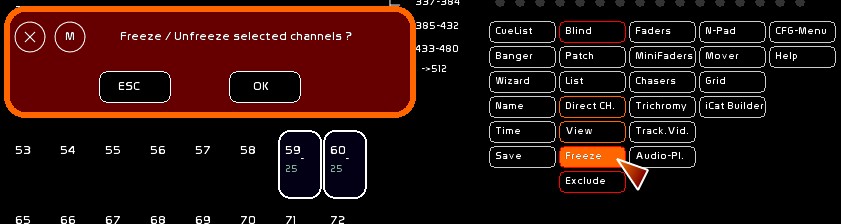
A frozen channel appears with a reddish blinking rectangle, its frozen level appears in white, on the top of the blinking rectangle.

Excluding channels from the action of the Grand Master
You can exclude a selection of channels from the action of the GrandMaster (color changers, circulation lights, etc…).
- Select channels to exclude from Grand Master Action
- Click [Exclude] and confirm
- As for Freeze, if the selection is already Excluded, then the channel will be included.
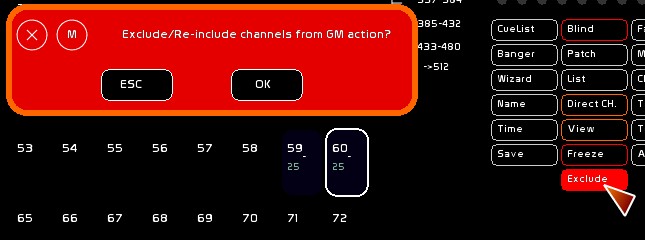
An Excluded channel appears with a red circle on its top.