Table des matières
DRAW
version 0.8.3.1
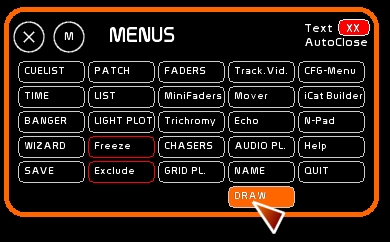
Opening the Draw Window
To access [Draw]:
- right-click to open [Main Menu]
- Click [Draw]
Presentation
[Draw] is dedicated to free-hand manipulation of traditional lights .
It is based on a matrix principle, where you can specify a number of columns and rows. You can assign a specific channel to each slot of this matrix.
When clicking on this matrix and moving the mouse, you will be able to “draw” dynamic lighting states.
This dynamic module is usefull for :
- creating lighting events in real time, freely, without encoding
- follow with top-lighting a comedian or a dancer
- create dynamic and expressive effects thru batteries of instruments, LED walls of lights, etc, etc…
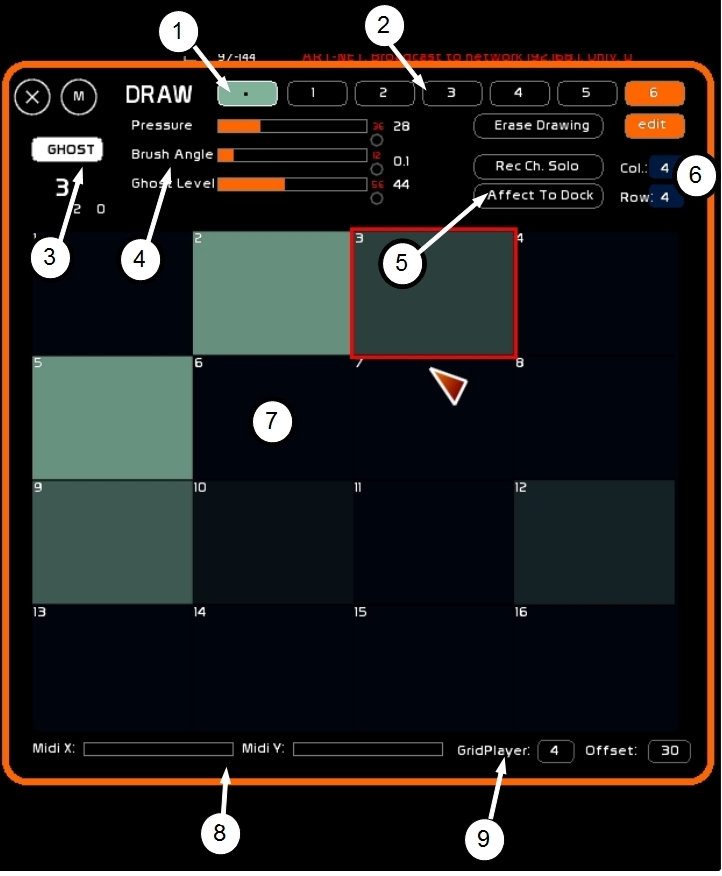
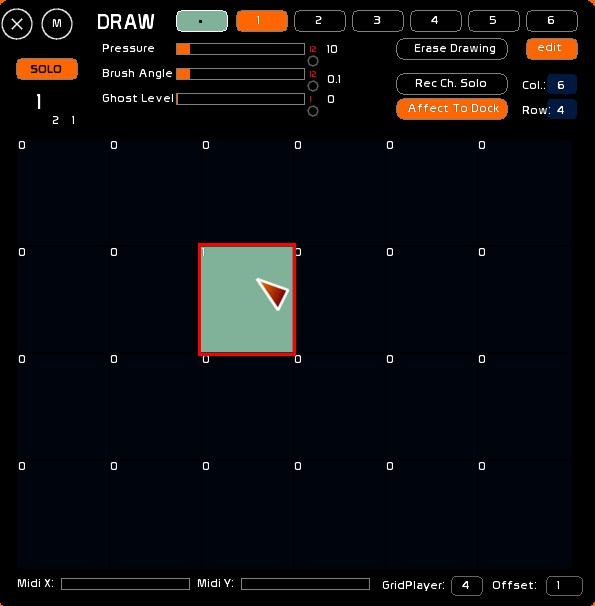
Draw window is composed of:
- the brush to use: by default a Dot brush, or the content of a GridPlayer
- the 6 Draw presets, which are 6 matrixes with specific size in columns and arrows, specific channel assignments and specific rendering parameters
- the Drawing mode button: additive [DRAW], subtractive [ERASE], [SOLO] or [GHOST], with the last mouse over channel printed under
- the parameters influencing the impact of the mouse on the matrix: [Brush Pressure],[Brush Angle], [Ghost Level]( dissipation of the rest of the matrix)
- 3 utility buttons: [Erase Drawing] , the Channel Assignment Mode's Button, and the [Affect To Dock] button.
- Setting of the matrix in columns and rows
- the matrix on which to draw
- midi assignement for X-Y midi controlers if you want to control Draw from midi hardware
- GridPlayer chosen if the GPL brush is called, and the offset from which information will be taken
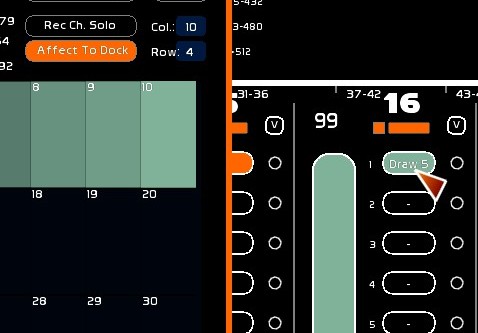
Assign a Matrix to a fader
- Click [Affect To Dock]
- Call fader window [F10]
- Click the dock to store in
- Push up the slider of the fader to see the [DRAW] rendered on stage
Editing Matrix Properties
Matrix's Size
The maximum resolution is 25×20.
- Select your matrix( [1], [2], … [6] )
- Set [EDIT] [ON]
- Type the number of columns or rows
- Click the box [Col] or [Row]
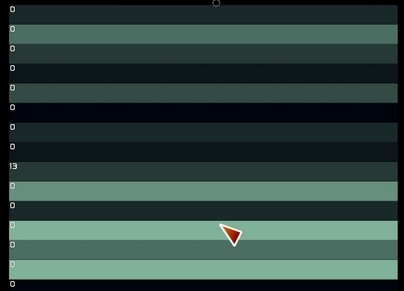
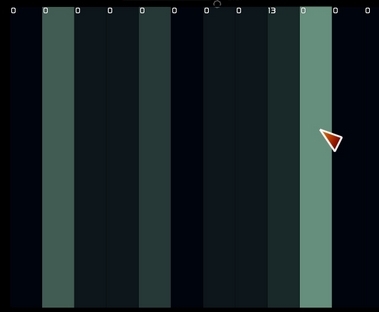
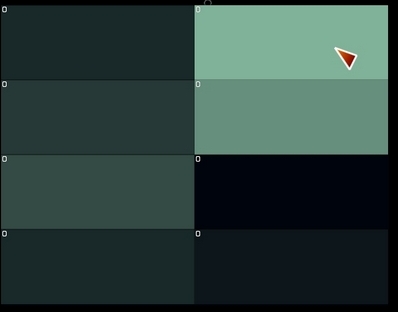
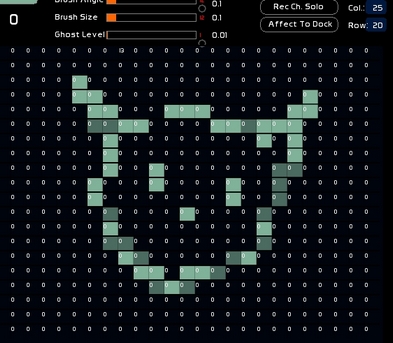
Some samples of what your matrix could look like:
Channel Assignment
You can only assign one channel per slot.
- [EDIT] must be [ON]
- Select Channel Assignment Mode (default is [Rec Ch. Solo])
- Press [F1]
- Type the channel number
- Click the matrix slot
Channel Assignment Modes are:
Solo
- [Rec Ch. Solo]: you will assign channels one at a time, slot by slot
Serial way:
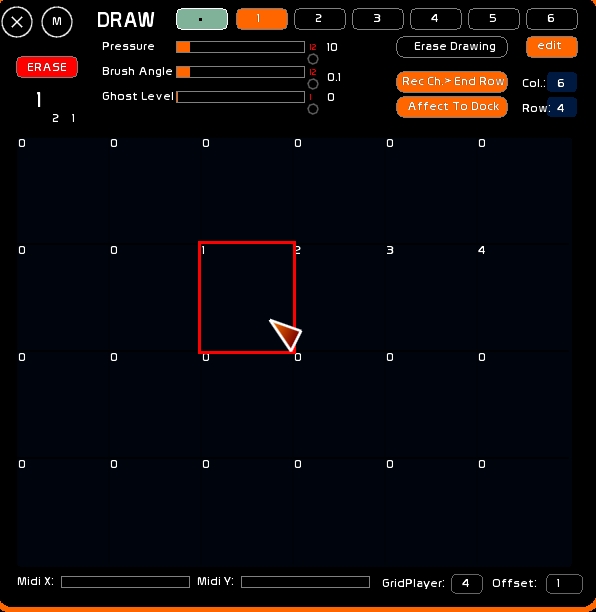
- [Rec Ch.> End Row]: The assignment will assign this channel and its numerical followers , until the End of the row.
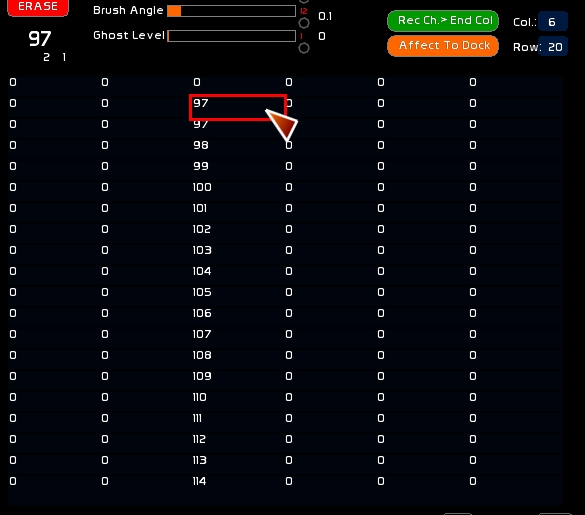
- [Rec Ch.> End Col]: The assignment will assign this channel and its numerical followers , until the End of the column.
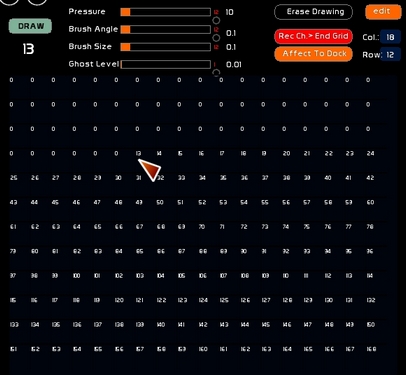
- [Rec Ch.> End Grid]: The assignment will assign this channel and its numerical followers , until the End of the matrix.
Clear Assignments
- [EDIT] must be [ON]
- Choose how you will clear your matrix: [Rec Ch. Solo], [Rec Ch.> End Row], etc….
- Type [F4]
- Click the slot
Clear a Matrix Completely
- Set [EDIT] [ON]
- Type [F4]
- Click the Draw preset box of your choice
Drawing
Dot Brush
This is the default tool. It affects only one slot.
GridPlayer Brush
You can use a GridPlayer to create your own brushes. Those brushes may be fixed lighting states, or animations (yes yes, animated brushes).
The GridPlayer doesn't need to be assigned to a Fader. Levels are directly taken from its execution.
Click the Dot mode to toggle to the [GPL] mode.
To assign a GridPlayer to a draw Preset:
- type the GridPlayer number
- click the GPL box on the lower right edge
Offset
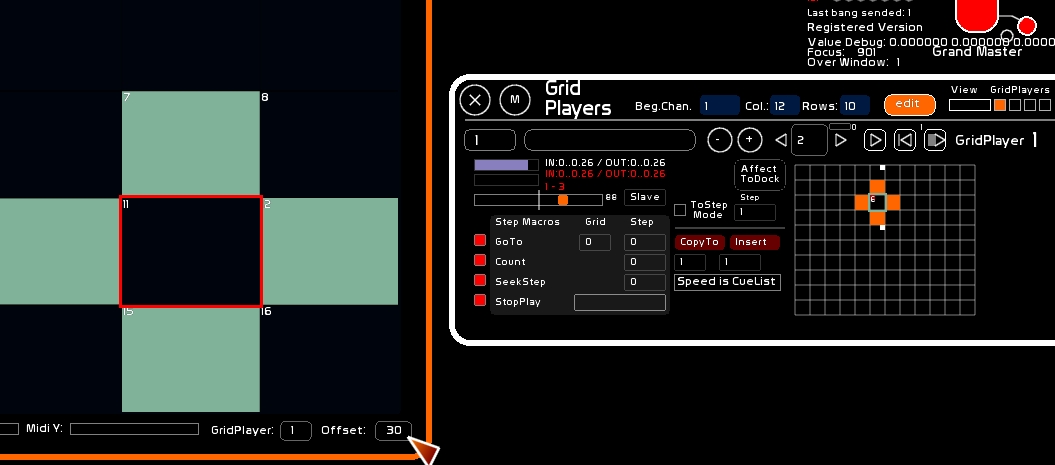
- The offset is the coordinate of the Slot in the Grid (not the channel) to take as a center of your animation. It is from this offset point you will construct your animated brushes in the gridplayer.
The offset slot in the grid appears outlined in the same color as the Draw color. The DrawPreset pointing to it appears inside the offset slot.
- type offset number
- click offset box
GridPlayers usage
With [BANGER] you will be able to select and change brushes on the fly, enabling you to express with the matrix quick and strong effects. See: * Banger, the events/automation manager, GridPlayers category.
Drawing Mode
Drawing mode defines how you will assgin the level present in the slots of the matrix.
[Pressure] is expressed from 0.0 to 1.0 and a translation in dmx levels is shown.
When the mouse button is pressed, overflown slots will be altered like this:
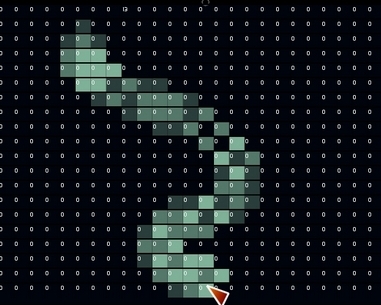
- [DRAW], Pressure level is added to the slot
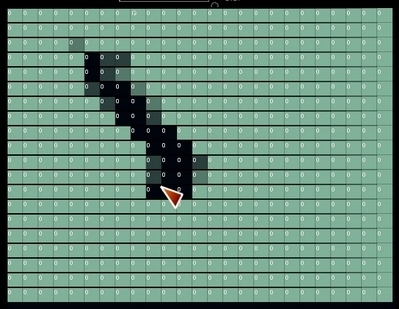
- [ERASE], Pressure level is subtracted from the slot
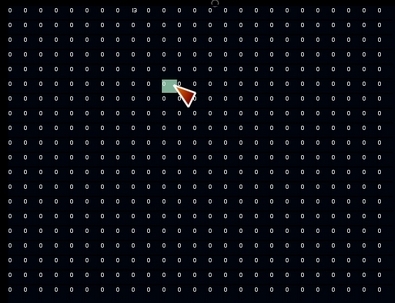
- [SOLO], only the currently touched slot will receive the Pressure level, enabling a kind of Follow Spot effect
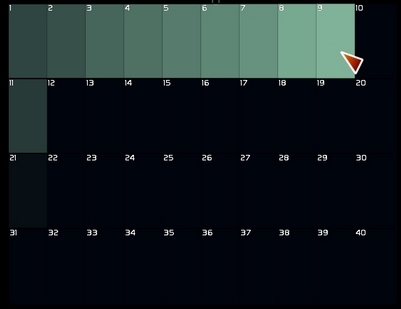
- [GHOST], all other slots will be erased depending on the [Ghost Level], giving you a kind of feedback effect
Draw Mode
Erase Mode
Solo Mode
Ghost Mode
iOS control
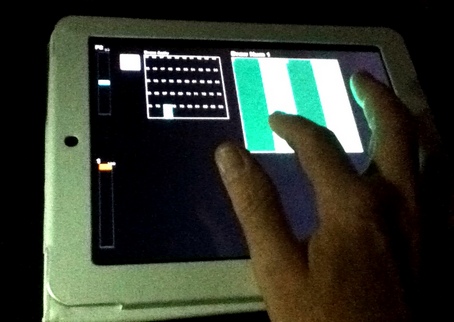
If you are on iOS (iPAD, iPhone, iPod), Fantastick-iCAT will allow you a unique and very rich way to remotely control all of the Draw Presets. You can even play different matrices at same time . See: iCat for iPod/iPhone/iPad
Midi Assignation
All commands are assignable in midi. See: Midi Assignment
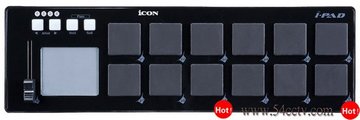
You can use a midi xy Pad to do the tracking job.
xyPad from iCON:
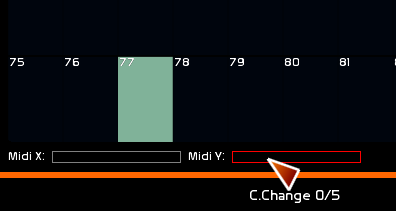
It may be a classical midi control surface, or a telephone like the Android or the iPhone, with Core Midi software and with an xy Pad. To use them, assign midi X and midi Y. See: Receiving CoreMidi over the network
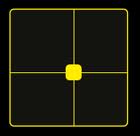
Touch OSC xy Pad:
Midi Out
Just click the 3 little circles the right of the 3 sliders to set the MidiOut.