Table des matières
Wizard, batch modifying memories
Accessing Wizard:
Click [Wizard]
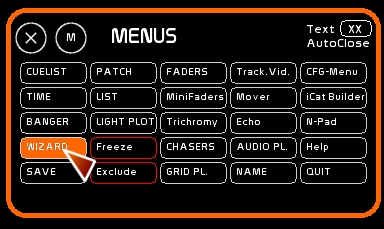
Wizard enables you to manipulate blocks of memories or the entire show.
Wizard has two modes:
- Wizard Mem to handle memories
- Wizard Ch to handles channels
What is the purpose of Wizard?
Wizard enables you to work on a series of memories with a simple click.
Wizard CH:
- Sometimes when touring, you may have your front light at 5m instead of 10m. so you need to decrease all the front light's channels by 20%. The Wizard enables you to do this on a whole block of selected memories, or globally on the whole show, without having to modify and over-record each memory manually.
- You may want to add a channel for backstage lighting, at 60%, without bothering to use [Freeze].
- When you created the cues, you had a beautifully sorted list of spotlights with its exquisite numerical logic, which has now become a nightmare: back light channels numbers are now mixed with side lights and front lights, because you have added/retrieved a lot of channels. [Swap] and [Replace] will help you to exchange and re-organize your channels numbers in your memories.
Wizard MEM:
- When you created the cues, you had added a lot of dot memories (.6 .7 .8), which you now need to resort numerically in a less confusing order.
- Moving or inserting a complete block of memories is possible.
- Restoration of deleted memories is possible.
To change the Wizard Mode, just click on the Box [Wizard Mem]/[Wizard Ch.]
Wizard works in 2 ways:
- On ALL the memories
- From one memory [From Mem] thru another memory [To Mem]
Once in the action mode after the parameters have been entered, you have to click [DO IT !]
Important
Changes done on the show are done in RAM.
In case of error, if you didn't record after changes:
- click *Reload from disk*, it will recall the show from the HDD.
- or, if you are in a panic, just quit White Cat without saving [SHIFT-F12], then re-open it.
Except for deleted memories, if you have saved the show after modifications, you can't go back to its previous state.
So, it is recommended, before using the Wizard, to record a special back-up, using [SAVE] under another name: mybackupjuly15th, for ex. Wizard actions are done in RAM, and when you quit White Cat, they will be recorded in the folder last_save. See Save to understand the Saving structure in White Cat.
WIZARD MEM
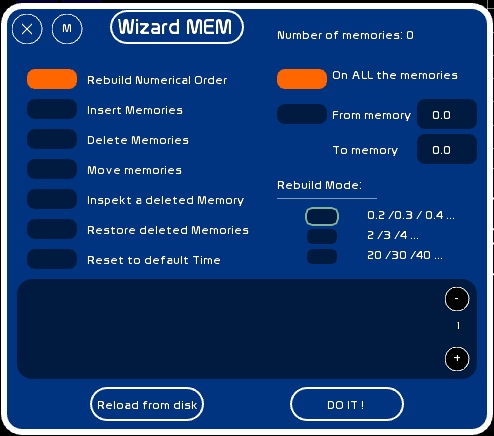
| Mode Wizard | Complementary input |
| Rebuild numerical Order | By memory DOT/WHOLE NUMBER/TENS |
| Insert Memories | Number of memories to insert from the specified position |
| Delete Memories | (will remove those memories from CueList) |
| Move Memories | To the desired position indicated by [Move To] |
| Inspect a deleted Memory | Show the content of the indicated memory |
| Restore deleted Memories | ( re-insert deleted memories in the CueList) |
| Reset to default Time | (set by default the time indicated in [CFG_MENU] > General |
Important
Deleting a memory in White Cat removes it from the CueList. If no other operations altering the order of memories is done (recording it again, displacements of memories, clearing of memories, inserting memories before), you can easily reload it.
WIZARD CH
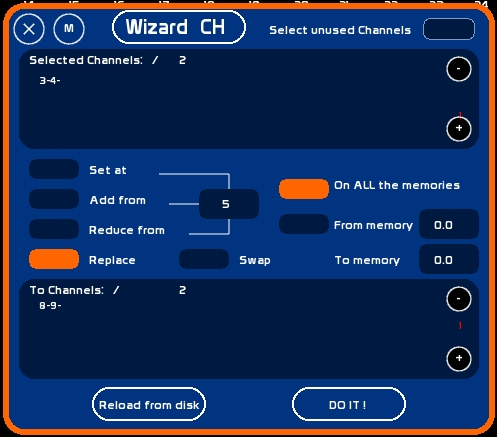
Wizard Ch doesn't manipulate memories, but channels in memories.
- Top window [Selected channels] shows channels you have loaded in it to be manipulated .
To load channels to modify:
- select the channels using the mouse or keyboard
- click [Store] or press [F1]
- click the Top window [Selected channels]
! [ + ] and [ - ] in this window enable you to navigate in the selection rows if you have many channels selected.
- select operator: Set At/Added from/Reduced from
- a value box enables you to edit the value that will be used by the operator
- type the value
- click the value box
- Concerning [Replace] and [Swap], a second window at the bottom appears, showing channels to replace or swap
- you select channels exactly like in the Top [Selected Channels] window
| Mode Wizard | Description |
| Set At | Set selected channels at the specified value |
| Added from | Add to selected channels (if they are > to 0) the specified value |
| Reduced from | Reduce from the selected channels (if they are > to 0) the specified value |
| Replace | Enables you to give to target channels the values of the selected channel. Selected channels will be set to 0. |
| Swap | Enables you to exchange the levels of the Selected channels for the levels of the Replacement channels |
Specific usage examples for [Replace]/[Swap]
Replace example:
- Selected channels: 1/100
- To replace channels: 5/20
- Result: 1/0 and 5/100
- Selected channels: 1/100 2/75 8/50
- To replace channels: 5/20 10/0 25/30
- Result: 1/0 2/0 8/0 and 5/100 10/75 25/50
In the event that the number of select/replace channels is not the same, the last input level will be assigned to the rest of the replacement selection:
- Selected channels: 1/100 2/75 3/10
- To replace channels: 5/20 10/0 25/30 26/30 27/75 35/100
- Result: 1/0 2/0 3/0 and 5/100 10/75 25/10 26/10 27/10 35/10
Swap example, and its subtlety:
[Swap] works from channel to channel. There should be EXACTLY the same number of channels in the Selected Box as are in the Swap box.
- Selected channels: 1/100
- To swap channels: 5/20
- Result: 1/20 5/100
- Selected channels: 1/100 2/75 3/10
- To swap channels: 5/20 10/0 25/30 26/30 27/75 35/100
- Result: 1/20 2/0 3/30 5/100 10/75 25/10
- the rest of channels are not affected: 26/30 27/75 35/100