Table of contents
AudioPlayers
Definition
WhiteCat includes up to 4 internal audio players, controllable via mouse, MIDI, or the Banger.
Supported formats: .wav, .mp3, .ogg, .flac.
Audio output uses your system sound card (single stereo output). For multi-channel playback, use a dedicated audio application alongside WhiteCat.
An audio folder can contain up to 126 files. Files are listed in alphabetical order — number them to control playback order.
Open the window
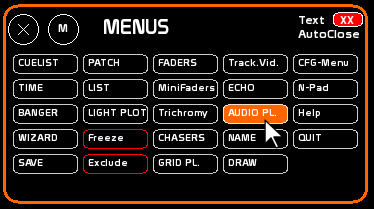
- Click AudioPlayers in the menu, or press [CTRL+A].
Audio folder management
Create an audio folder
From Windows Explorer, create a subfolder inside white_cat/audio/.
Name it (e.g. MyShow).
Copy your audio files into that folder.
  white_cat/
            audio/
                  MyShow/
                  Rehearsal/
                  Demo/
The active folder name is saved with the show.
Select the active folder
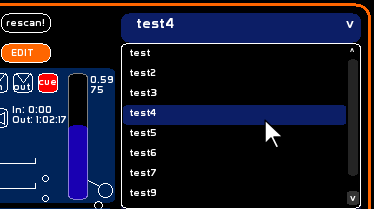
At the top right of the AudioPlayers window is the folder drop-down list.
- Click the ▼ button (or the folder name area) to open the drop-down.
- Select the desired folder from the list.
- The file list updates automatically.
- The mouse wheel scrolls the drop-down when it is open.
Refresh the list
If you add files to the folder during a session, click [rescan] to update the list without restarting WhiteCat.
The file list
The right column shows the files in the active audio folder, numbered in alphabetical order.
Navigating the list
- When the list overflows the display area, a scrollbar appears on the right.
- Scroll using the scrollbar (click the arrows or drag the thumb), or with the mouse wheel while hovering over the list.
- In AutoLoad mode, the list scrolls automatically to keep the current track visible (at the 2nd position).
Assign a file to a player
- Click a file in the list — it is highlighted.
- Then click the target player slot to load it.
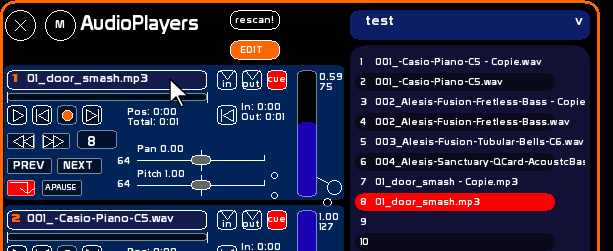
File numbers (1, 2, 3…) are the identifiers used in the Banger. They correspond to the alphabetical position in the folder.
Tip: prefix your filenames with numbers to control their order:
01_opening.wav 02_scene1.mp3 03_finale.flac
Clear a player
The last item in the list is an empty slot. Selecting it then clicking a player unloads the file assigned to that player.
Player layout
A player's controls are only active when a file is loaded.
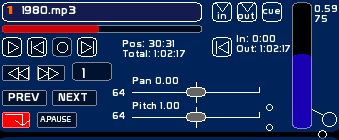
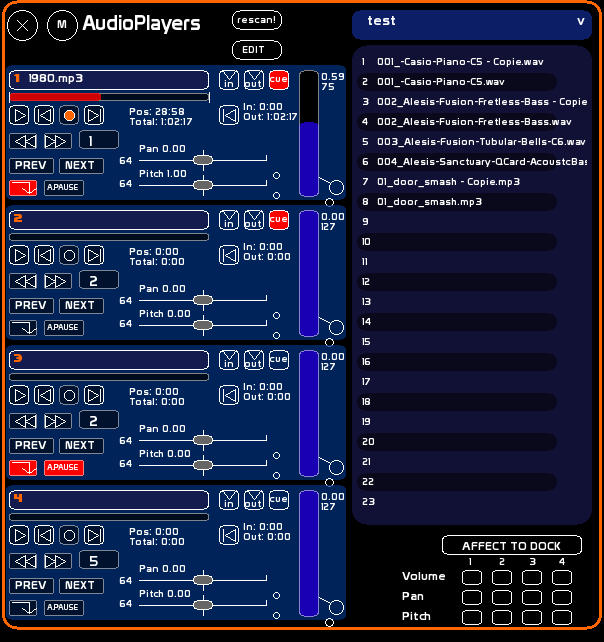
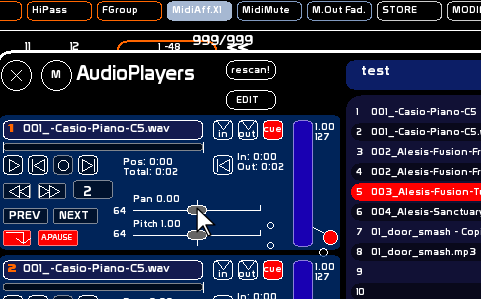
Left section — basic controls
- Loaded file name and progress bar (clickable seekbar)
- Play / Pause — starts or pauses playback
- Stop / Return to start — stops and repositions to 0:00 (or to CUE IN if CUE mode is active)
- Loop — enables continuous looping
- ◀◀ / ▶▶ — rewind or fast forward
- Prev / Next — loads the previous or next file in the list
- AutoLoad — automatically loads the next file at the end of playback
- AutoPause — stops the player at the end of the file (combined with AutoLoad: sequential playback with a pause between tracks)
Right section — CUE mode
- IN point — start position of the CUE zone (displayed in seconds)
- OUT point — end position of the CUE zone
- CUE button — enables/disables CUE mode for this player
- SeekCue — jumps to the CUE IN point
Volume / Pan / Pitch knobs
- Volume — vertical fader, blue colour (same as general faders in volume mode). Value 0–127 for the Banger.
- Pan — horizontal fader. 0 = left, 64 = centre, 127 = right.
- Pitch — horizontal fader. 0–63 = slower, 64 = normal, 65–127 = faster.
These levels are shown as decimal values, and as 0–127 values for Banger encoding.
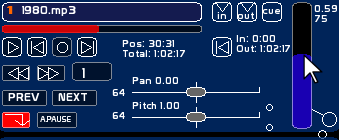
Loop and CUE
Simple loop
Activate the Loop button: playback restarts from the beginning when the file ends (or from CUE IN if CUE mode is active).
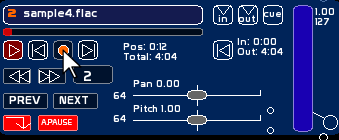
CUE mode
CUE mode defines a bounded playback zone between an IN point and an OUT point within the audio file.
Loop + CUE active: playback loops seamlessly between the IN and OUT points with a transparent crossfade.
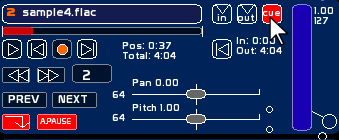
CUE in normal playback (no loop)
CUE mode also works without looping:
- Playback stops at the OUT point and the player repositions to the IN point.
- If AutoLoad is active, the next file is loaded and starts at its own CUE IN point.
- This allows CUE points to be used as precise cue-to-cue markers in a sequential show.
CUE per player
Each file has 4 independent CUE point sets, one per player. The same file can therefore have a different entry point depending on which player it is played on.
CUE positions are saved automatically with the show.
Setting CUE points
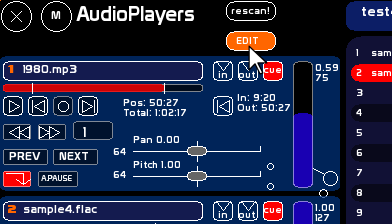
- Enable [EDIT] mode.
- Play the file and navigate (Play, fast forward/rewind, Pitch, seekbar).
- Click [IN] or [OUT] at the desired moment to set the point.
- Values in seconds are shown below the seekbar.
- If the IN point exceeds the OUT point (or vice versa), the second point is automatically adjusted.
AutoLoad and AutoPause
WhiteCat does not have a playlist in the strict sense, but AutoLoad mode enables automatic track sequencing.
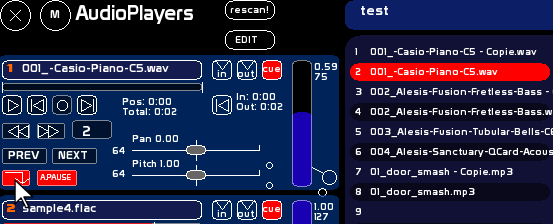
- AutoLoad only: at the end of a file (or at CUE OUT if CUE mode is active), the next file is loaded and starts playing immediately.
- AutoPause only: the player stops at the end of the file (the file remains loaded, ready for a new Play).
- AutoLoad + AutoPause: the next file is loaded but playback does not start — the operator triggers each track manually.
In AutoLoad mode, each loaded file starts at its CUE IN point if CUE mode is active. The file list scrolls automatically to keep the current track visible.
When the last file in the folder is reached, the player stops (the empty slot at the end of the list is selected).
Tip: to organise several sequences within the same folder, prefix your files by player:
A_01_intro.wav A_02_scene.mp3 B_01_music.flac
Volume, Pan, Pitch — MidiSendOut
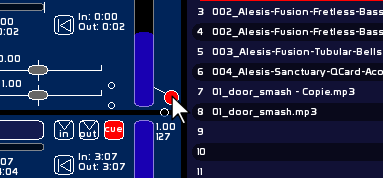
By activating the MidiSendOut indicator, you can re-send the Volume, Pan, and Pitch signals outward. This indicator groups the re-send of all 3 controls together.
This feature allows motorised devices (BCF, X-Touch…) or rotary encoder controllers (BCR, Midi Fighter…) to update their physical state when values are changed via mouse or Banger.
Assign to a general fader
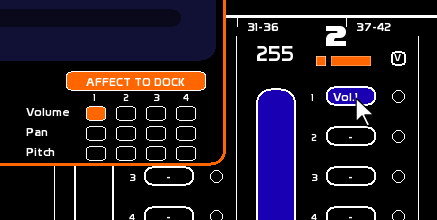
The [Affect to dock] section at the bottom of the window lets you assign the Volume, Pan, or Pitch of a player to a fader in the fader space.
- Choose the type (Volume / Pan / Pitch) and the player number.
- Click [Affect to dock].
- Click on a fader dock.
- The fader turns blue (volume colour) to indicate the active assignment.
OGG / FLAC — RAM allocation
.ogg and .flac files are loaded entirely into RAM when assigned to a player. This ensures smooth, skip-free playback with no decoding latency, even in CUE or loop mode.
.wav and .mp3 files are not affected: they use their own loading mechanisms.
If an OGG or FLAC file exceeds the configured limit, it is played in degraded mode — playback remains possible but may show irregularities (less precise seeking, slight startup latency).
Setting the RAM limit
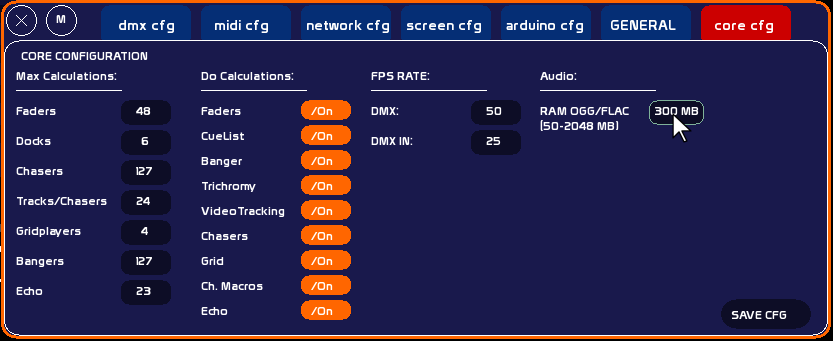
The setting is accessible in CFG → Core config, field RAM OGG/FLAC.
- Range: 50 to 2048 MB
- Default value: 300 MB
- Type the value in the field, then click it to confirm.
In most situations, the default 300 MB is more than sufficient.
The table below gives an approximate idea of RAM usage by duration and format:
| Duration | OGG ~128 kbps | OGG ~256 kbps | FLAC stereo 44.1 kHz 16 bit | FLAC stereo 96 kHz 24 bit |
|---|---|---|---|---|
| 1 min | ~1 MB | ~2 MB | ~6 MB | ~18 MB |
| 5 min | ~5 MB | ~10 MB | ~29 MB | ~88 MB |
| 10 min | ~9 MB | ~19 MB | ~59 MB | ~176 MB |
| 30 min | ~28 MB | ~56 MB | ~176 MB | ~528 MB ⚠ |
| 1 hour | ~57 MB | ~113 MB | ~352 MB ⚠ | ~1056 MB ⚠ |
| 2 hours | ~113 MB | ~225 MB | ~704 MB ⚠ | ~2112 MB ⚠ |
⚠ = exceeds the default 300 MB limit → degraded mode playback. Increase the RAM limit if needed.
Tips: increase the limit if your OGG/FLAC files are large and the machine has sufficient RAM. Decrease it on low-memory configurations.
MIDI Assignment
All player controls can be assigned to MIDI: Play, Stop, Loop, CUE on/off, SetIN, SetOUT, SeekToCueIN, Volume, Pan, Pitch, Prev, Next, AutoLoad, AutoPause.
Note: audio commands cannot be assigned in series (MIDI Aff. X2 or more). Assignment is in SOLO mode only.
- Enable [MIDI Aff. X1] mode.
- Send a MIDI signal (Note On/Off or Control Change).
- Click the target control.
For more details: MIDI Configuration and Assignments