Table des matières
Video Tracking aka Air-Lighting
Please note that in order to use this feature it needs to be turned on in the General Tab of the configuration menu BEFORE WHITE CAT IS started.
Main concepts
The Tracking module enables you to change the intensity of your lights based on the signal from a simple webcam. White Cat receives the video stream from your webcam (WDM drivers only).
The image from this webcam is analyzed in real time and passed through different filters to obtain the information that can be translated to lighting levels for channels.
This process is done on different ROIs (Regions Of Interest) that can be user defined in the image.
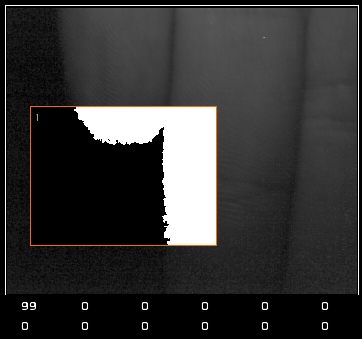
There are 6 presets, each one containing 12 ROIs.
Each ROI is editable in terms of placement and size in the image, and you can assign different channels to each ROI. .
Each ROI may be activated/desactivated.
Overall, you can have 12×6 independent channel assignments.
6 presets enables you to change spotlights and configurations easily in a concert situation.
Understanding:
The calculation of a lighting level inside a ROI is based on this ratio: Number of pixels in the ROI divided by number of white pixels founded in the ROI.
Working with video tracking requires some special conditions:
- a dark environment where ambiant lighting won't interfere
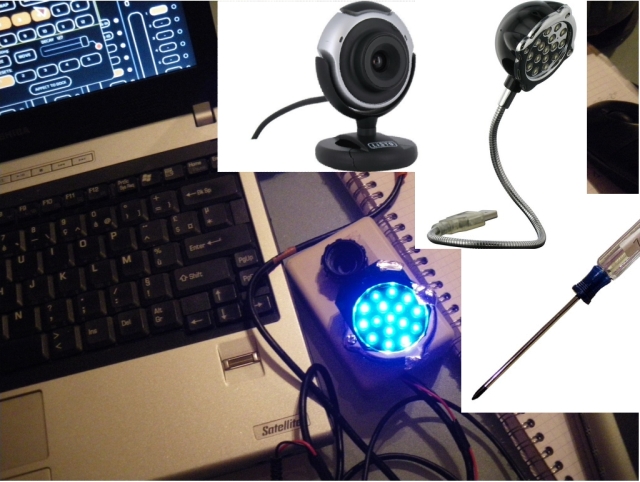
- a small lighting source near your webcam to light the area right in front of the lens of the camera
For the moment, White Cat auto-connects to the first WDM camera driver found. To configure the camera, close White Cat and launch /utils/VIDCAP.exe.
In VIDCAP, select OPTIONS > VIDEO Format and select a maximum resolution of 352×258 or your CPU will be seriously slowed down. Apply and quit VIDCAP.
In White Cat, even though your camera may be a color camera, you will see the video stream in black and white.
Equipment:
- USB lamp (cheap one 9 euros)
- webcam (cheap one 9 euros) or a PS3eye camera that is perfect because of its high frame rate (up to 100 fps about 40 euros)
- if you have a built-in camera, deactivate it
- connect and launch White Cat
- Here is a little DIY project in a box, that is easy to tape on the table, and with a Lee132 for the lighting source, it will prevent your eyes getting tired:
Video Tracking
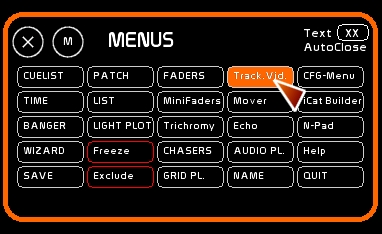
To access Video Tracking, click [TRACK.] or press [F8].
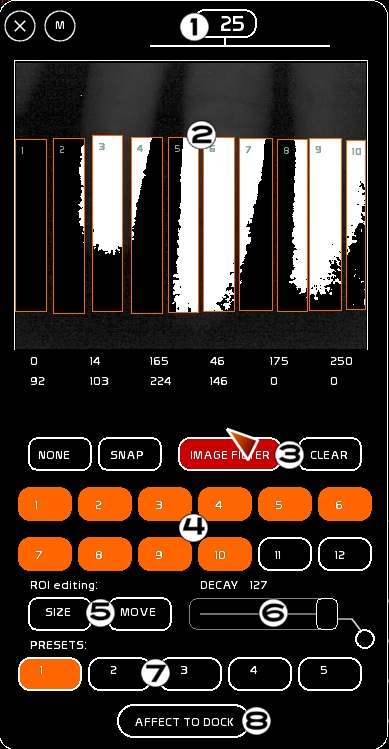
Video tracking consists of 8 different parts (from top to bottom):
- refresh rate (fps). Generally on a simple, cheap webcam this will be around 15 fps. On the PS3eyes you can reach 100fps.
- image printing zone, showing ROIs and levels outputted from them
- Image menu
- ROI selection tab
- ROI edition menu
- speed of levels restitution
- the 6 video presets
- affectation to a dock
To see channels controlled by the webcam on stage, it needs, as every dynamic content:
- to be stored inside a dock
- the dock must be selected
- the fader must be activated
Assigning output of the video tracking module to a dock
- Click [AFFECT TO DOCK]
- Click the dock oval
- bring up the fader
! Be aware, unlike trichromy, there is only ONE output from video tracking. Video presets are just pre-selections of different channel routing.
Image calibration and calculation modes

Calculation mode: NONE or SUPPR
Toggle it from [NONE] to [SUPPR]
NONE
You can make the background disappear by adjusting the THRESHOLD. This technique uses less computer resources. Unlike [SUPPR], where the image is subtracted from a referenced snapshot (background subtraction technique).
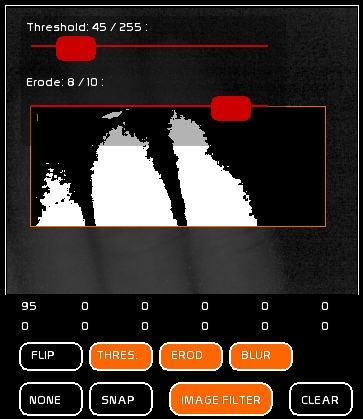
NONE is affected by the adjustment of the THRESHOLD in [IMAGE FILTERS]
SUPPR
If you are in a difficult environment where it is too bright (white ceiling, control room too brightly lit by audience lighting), you can use SUPPR mode. SUPPR enables you to take a reference image in the picture and subtract it from the video stream.
To use SUPPR:
- click [SNAP] to record in RAM a background reference image (this has to be done each time you open White Cat)
- use THRESHOLD and DIV.FACTOR in [IMAGE FILTERS] to adjust the result

Images Settings
General settings:
- [FLIP] to flip the image vertically
- [THRESHOLD] to calibrate a Threshold high-pass filter
- [EROD] to nibble undesired pixels (when too much noise)
- [BLUR] to blur the image in 3×3, and clean up the noise of the image (little white pixels)
NONE how to
This is the recommended method. You can regulate the high-pass filter with THRESHOLD, until the background is completely black and keep your hand visible and white with the lamp near the lens.
SUPPR how to
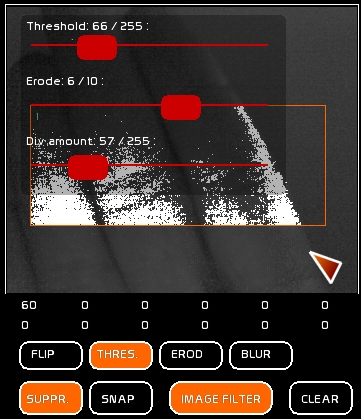
After you have made a [SNAP] without your hand, with just the background, adjust the threshold and div. factor. Note that ROI levels are printed below. Those levels are in the 0-255 range (dmx).
A good calibration is based on 3 things: lighting of the hand/threshold/div-factor.
You need a ratio of 255, when the hand is covering a ROI, and 0 when it is not in the ROI.
DIV.Factor: the OpenCV operation behind this is DIV (dividing).
PRESETS and ROIs
PRESETS
There are 6 video presets that you can select with the mouse or with the keyboard: [A] [Z] [E] [R] [T] [Y]. For those with English keyboards that's [Q] [W] [E] [R] [T] [Y] for you.
Each preset contains 12 ROIs, each one being customizable for each preset (size, position, channels assigned to the ROI).
Why so many video presets?
To enable different movement types and lighting reactions, imagine:
Preset 1: 6 Blinders from stage left to stage right. Moving your hand will act laterally on the 6 ROIs. Your ROI placement will match the physical lighting implementation you see from the control room.
Preset 2: 8 toplights in a circle with an 8 ROI system placed in the image to match the physical implementation.
Preset 3: effect of clouds with PAR 64s, on 12 overlapping ROIs
… etc …
Clear a video preset
Use the [CLEAR] button in the video window.
Click Preset: all its ROI, size, position and channel assignments will be cleared.
ROI
Please note that each ROI, has a little number that shows its ID.
Each ROI may be toggled on/off with the mouse or with the keyboard:
[Q] [S] [D] [F] [G] [H] (on an English keyboard that is: [A] [S] [D] [F] [G] [H])
and
[W] [X] [C] [V] [B] [N] (on an English keyboard that is: [Z] [X] [C] [V] [B] [N])
When a ROI is ON, its outputted levels are activated.
Channels Assignment to a ROI
You assign only a selection of channels in a ROI (not levels). Levels come from the calculations of video tracking.
- select channel(s) (they don't need to be lit)
- click [STORE] or press [F1]
- click ROI to assign those channels
! Be aware: the channel ROI assignments are specific to each Video Preset . Each preset contains 12 ROI, and there is no relationship from one preset to another.
To modify:
- select the channel desired
- click [MODIFY] or press [F2]
- click the ROI
If the selected channel is already in the ROI it will be removed. If it is not yet present, it will be added to the ROI assignment.
Editing the size of a ROI
- Click [SIZE]
- Click the ROI to edit it
- with the mouse drag around the ROI to edit its size
- click [SIZE] again to get out of the Size edit mode
Editing the position of a ROI
- Click [MOVE]
- Click the ROI to edit it
- with the mouse drag around the ROI to edit its position
- click [MOVE] again to get out of the Position edit mode
Clear a ROI
Use the [CLEAR] button in the tracking video window. Click the ROI: size, position and channel assignments will be cleared.
To view channels assigned to a ROI
- Set [VIEW] ON
- When you roll the mouse over the ROI channels, they will appear in Channel space.
Damping by DECAY
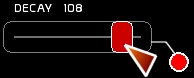
Decay enables you to dampen in time and intensity the ROI reaction.
One of the principal problems in managing control by video image analysis is the method of fading away the values received.
Decay enables you to adjust on a time basis last value received from the OI analysis process.
When set to 0, nothing will occur. When moved, there is a pause.
When set to 127, the reaction will be immediately transmitted (raw reaction).
Set to 108, you will see a smoothing effect to the movement, you can ever so slightly touch the ROIs and see the levels gently reaching the last value received.
Midi assignment
Decay is controlable in midi ( see midi configuration ).
Motorized midi control surfaces can send back its level.
ROI selection and preset selection are also midi assignable.