Table des matières
FX on Faders
Buffer Faders, in
Prior to version 0.8.2.7 faders were only used in HTP mode: Highest level coming from a fader was taking precedence.
The level of each fader is read, from fader 1 thru fader 48 and this is compared to the buffer where the result of this operation is stored.
If a channel output by a fader is at a higher level than the General Buffer of Faders, this channel will be stored in the General Buffer of Faders at this higher value.
Example:
- Fader 1 contains channels 1/20 and 30/full. Fader 1 is set at 50%.
After reading the state of Fader 1, the General Buffer of Faders will store 1/10 and 30/50.
- Fader 2 contains 2/50 and fader 2 is at full.
After reading the state of fader 2 (and previously fader 1) the General Buffer of Faders will contain 1/10 2/50 and 30/50.
- Fader 3 contains channel 1/full and is at 90%.
After reading the states of faders 1 and 2 and 3, the General Buffer of Faders will contain 1/90 2/50 and 30/50.
This calculation, fader by fader, is done until fader 48.
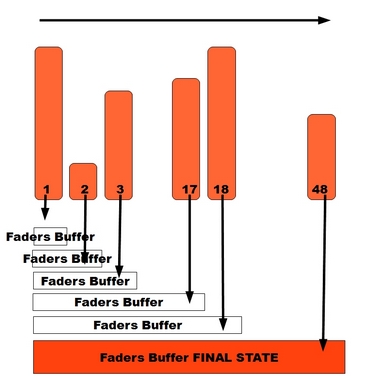
This (Highest takes precedence) means that the biggest value is the one that is output.
Using FX modes
Concerning FX, and having in mind this operation of comparison, fader by fader, visualize faders as layers.
Fader 1 is under all the others, and fader 48 is on the top. The last fader to be compared and having influence on the General Buffer of Faders will be 48.
Despite doing this comparison, you can choose different modes to alter the General Buffer of Faders when a fader is read. Those modes are based on simple calculations such as subtracting, adding, and excluding.
FX restitution modes for a fader are based on the logic of video composition, or the logic of CAD drawing software using layers because the same logic is underneath them all.
To change the reaction mode of an FX and switch from mode to mode, you can click the FX rectangle:

When a channel is output by a fader at a level greater than zero, it will act on the General Buffer of Faders as follow:
| Mode | Color | Calculation |
| Orange | Normal mode, Highest level. Ex. F1 puts chan 4/60 and F2 puts 4/20 so output is 4/60 assuming both faders are run up all the way | |
| Off | Black | Output is not stored in the General Buffer of Faders, but will be used for the Faders groups (see below) Ex. F1 puts 4/60 and F2 (4/20 but set to off) has no effect. Output remains 60. |
| Subtract | Red | Output is subtracted from the General Buffer of Faders. With F1 putting 4/60, then F2 (4/20 set to subtract) will make the output 40 when F2 is run up all the way |
| Add | White | Output is added to the General Buffer of Faders. With F1 putting 4/60, then F2 (4/20 set to add) will make the output 80 when F2 is run up all the way |
| Screen | White Blue | An average value is taken from the Output of the fader and the General Buffer of Faders state. Then it is divided by 2 and this is used as the output value. With F1 putting 4/60, then F2 (4/20 set to screen) will make the output 40 when F2 is run up all the way |
| Exclusion | Dark Blue | The lower value is subtracted from the higher value: If the General Buffer of Faders is higher than the fader output, the fader will be subtracted from the General Buffer of Faders. With F1 putting 4/60, then F2 (4/20 set to exclude) will work the same as subtract and will make the output 40 when F2 is run up all the way |
| Dark Blue | If the General Buffer of Faders is less than the fader output, then it will be subtracted from the fader output. With F1 putting 4/05, then F2 (4/20 set to exclude) will subtract 05 from 20 which will make the output 15 when F2 is run up all the way |
Practical Cases:
- Concert: instead of bringing down a fader that contains your backlights and bringing up a fader containing a chaser on your backlights, just use the chaser fader in subtract or exclude mode.
- Touring: easily modifying levels with some faders, manually without using the wizard (the result of a fader working upon the CueList buffer will display in channel space showing the modified output)
- Performing: manually impacting CueList output quickly.
Assigning to the CueList Buffer
This fader special FX mode may be output directly to the CueList space (instead of working in Fader Space). The CueList space is the result from the cross-faders (onstage mem + preset mem).
Just toggle the little square beside the FX mode, it will become blue, showing you its assignment to the CueList space.

Creating Fader Groups, with the Off mode
You can create a Fader Group (Fgroup) by setting the fader to Off .
An Fgroup is a fader that contains HTP calculations from a group of different faders.
Fgroups are recorded to docks and are dynamic containers.
Fgroups work like sound subgroups, only in HTP, no special FX mode is available.
To create an Fgroup:
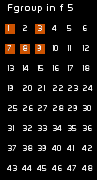
- select in the minifaders windows the faders to assign to the Fgroup.

- click [Fgroup] mode to On

- click [STORE] ([F1])
Assigning An FGroup to a dock:
In minifaders window:
- click fader number to assign it to the Fgroup
In faders space:
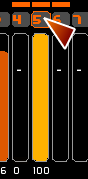
- Click the dock to record an FGroup in the dock selected
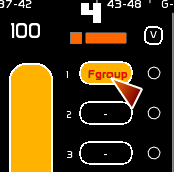
In minifaders window, when mousing over a fader, you can see the content of an Fgroup.