Table des matières
Chasers
Chasers are very specific to White Cat in the way they work and are handled. This special ergonomy comes from the way we use the chasers, and the global limitation on a traditional lighting control desk. Usually, when you record a chaser on a light board, you record a kind of sequential cue list, consisting of steps that run one after another. Modifying this on the fly during a performance or reordering the steps or actions is generally impossible.
Chasers are designed in White Cat to enable manipulation on the fly. They are inspired by music practices and sequencers.
As with other dynamics content, a chaser needs to be assigned to a dock to be able to run on stage.
The chaser window enables you to work on all of the parameters of a chaser. It is an editing and modifying window in Live for ONE chaser. Once a chaser is created, you can have simultaneous chasers running and trigger them from the embedded commands dedicated to chasers in a fader without having to use the chaser window at all.
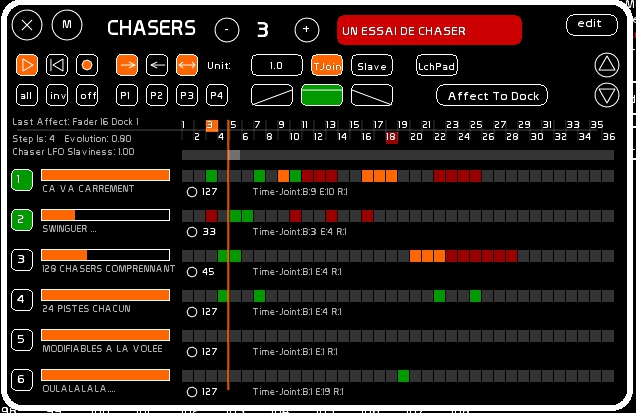
Chaser window presentation
Calling Chasers window
Click [Chasers] or press [Shift-C]
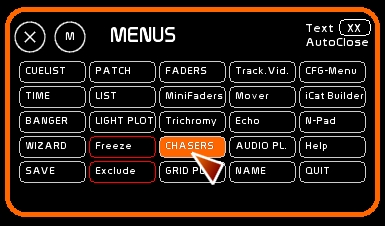
Navigating, editing

Navigation up and down in the 128 chasers of White Cat:
- Use the +/- icons
When the [EDIT] button is selected (turned ON), you can:
- Name a chaser: [F5], type the name, click the red name area
- Edit chaser grid
Assign to a Dock
The same chaser may be stored in several docks. However, in terms of controlling its speed with an accelerometer, it is the last fader (where the chase was stored most recently) that is used.
The fader that was the last one will be displayed above and to the left of the TimeLine:

- Select assignment mode [AFFECT to DOCK]

- press [F1] or click [STORE]
- Click the dock to assign this chaser to it
- Slide the fader up and the chaser will now be outputting to the stage
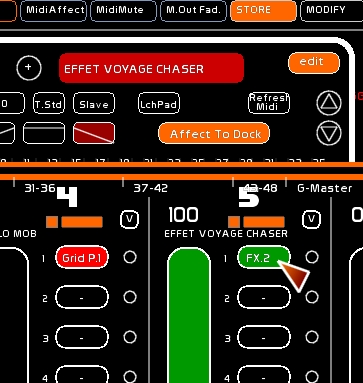
When a chaser is assigned to a dock, this dock is selected, and the 3 chaser command buttons appear below the accelerometer: PLAY, SEEK at BEG, LOOP. These commands enable you to operate different chasers with the mouse or by using midi.
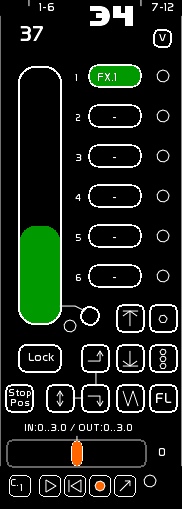
Embedding a chaser inside a fader allows you to access some commands related to the chaser from the fader:
- Play
- Seek
- Loop
- Autolaunch: when fader is pushed up, the chaser is played. When fader is set at 0, the chaser seeks to the beginning, and is stopped.
Steps and TimeLine
Each Chaser contains 36 steps.
Each Chaser has its own Time Unit corresponding to the duration of a step in the grid: each step may be 1 second, 5 seconds, 0.0001 seconds, 15 seconds, whatever you want, but all steps are of equal length. This is the [TimeUnit]. While this time is the same for all steps of this particular chaser, it may vary from chaser to chaser, as suits your needs.
You can activate an operation in each step (Fade In, Stay, Fade Out) of the TimeUnit chosen.
A Chaser is played from the first step to the last step.
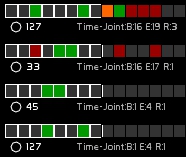
Here, in the image, we can see the first step (in orange) being step 3, and the last step (in red) being step 18.
The timeline shows a cursor which represents the current execution position of the chaser in the step grid.
There is only ONE cursor per timeline.
There is only one speed, for the cursor position for each chaser.
You can move from step to step manually by clicking the grey bar of the Timeline.
The beginning step and ending step are adjustable with the mouse.
Main commands of the chaser window

From left to right:
- PLAY
- SEEK TO BEGIN STEP (depending on which way the chaser is running: forward or backward)
- LOOP of the chaser. If loop is set to off, the chaser will be played only once.
- Forward running direction
- Backward running direction
- Going back and forth
- TimeUnit buttons, where times are set in seconds and tenths of seconds (syntax .. for minutes is not active)
- the calculation method for times of the Time Unit: Time Standard or Time Join
- Slave button, enabling you to enslave the TimeUnit to the accelerometer of the fader in which the chaser is docked, and thus modify the speed that is sent to the stage.
Editing TimeUnit and Time Modes
TimeUnit is equal to the time of each step in a chaser.
To edit this time:
- set [EDIT] mode to ON
- type your value in seconds: 1.0 or 5.2 or 0.1 or 40 seconds….
- click [TimeUnit]
- from version 0.8.2.2 onward: you can assign the tap tempo obtained in the [TIME] window as time unit value.
Time Modes: T.Std T.Join
This peculiar time calculation is concerned with similar types of operations being or not being continuous.
In the chaser module, each step of each track may receive one of the following actions:
- Fade In
- Stay (dwell)
- Fade Out
In the following example, there are 3 contiguous steps assigned to fade in actions, with a TimeUnit of 3 seconds.

If you are in the classical (T.Std) Time mode, the operation will work as follows:
- fade IN in 3 seconds of the channels stored inside the track
- cut to zero instantly and again do a fade IN in 3 seconds of those channels
- cut to zero again instantly and again do a fade IN in 3 seconds of those channels
If Time Mode is set to Join ( T.Join) we have:
- a single fade IN lasting 9 seconds where the channels stored inside the track are brought up
Time Join is calculated only for operations of same type with contiguous timeUnits steps.
Slave

If [Slave] is engaged, the TimeUnit is assigned to the acceleromater of the fader to which the chaser was most recently assigned (this is displayed above the timeline, on the left).
When the fader's accelerometer is completely to left, the time unit is accelerated to its maximum. When the fader's accelerometer is completely to the right, the time unit is at its previously set time, untouched.
This means that you can only speed up a time unit.
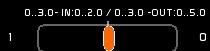
On screen information
At the left of the timeline:
- last fader to which this chaser has been assigned.
- the current step position of this chaser
- the progression inside of this step (evolution) expressed from 0.00 to 1.00
- Speed factor of the TimeUnit as changed by the accelerometer
For each track you have the TimeJoin feedback, giving you:
- step at the start of the Join
- step at the end of the Join
- number of steps remaining for a complete execution of the TimeJoin
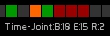
Tracks
Each chaser contains 24 tracks. You can assign channels or memories to each track.
Example:
Track 1 will contain channels 25 and 48 at 75% and 54 at Full.
Track 2 will contain channels 30 and 31 at 55%.
By activating an action on the timeline (Fade In, Stay, Fade Out), you will trigger the lighting of channels assigned to each track, depending of the operation and its progress and proportional brightness of the track.
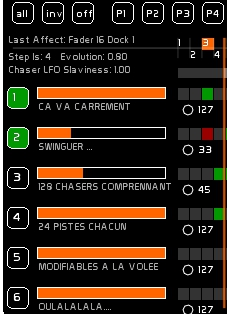
Each track has an ON/OFF: so you can turn off the output of a track.
When it is ON, the box is GREEN.

You can modify the intensity of the output of each track. The level appears on the right, expressed from 0 to 127. You can also send the level of the track in midi to a motorized device (little circle which when activated turns red).

MidiMute (local):
Version 0.8.2.2 and onward: A second circle (smaller) enables you to mute (turn off) the control assigned to the track, and to manually move your physical fader to match the track level.

The UP and DOWN buttons on the right enable you to navigate up and down through the tracks of a chaser

To edit a track, [EDIT] must be set to ON.
Manipulating tracks
Recording channels in a track
You can record one or more channels to a track, at different levels:
- construct your lighting state on stage
- verify that the feedback string is cleared by pressing ESC (please don't enter a number or you will assign a memory)
- press [F1] or click [STORE]
- click the track number box to assign to
- confirm
Assigning a memory to a track
You can link a memory to a track. The memory will automatically update if you later modify the cue.
- type the number of the memory
- press [F1] or click [STORE]
- click the box of the track that you want to assign to
- confirm
Giving a description to a track
- press [F5] or click [NAME]
- type the description
- click the name area of the track to assign to
Clear a track
- press [F5] or click [CLEAR]
- click the track number that you want to clear
- confirm
Inspection of the content of a track
To find out what is inside a track:
- click [VIEW]
- roll the mouse over the track button
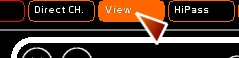
Channels will be outlined in green, with their levels displayed in Channel space.
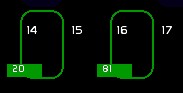
Manipulation of tracks ON/OFF
ALL, INV, OFF
You can toggle the ON/OFF state of all tracks
- ALL sets all tracks to ON
- INVersion of ON/OFF for all the tracks
- OFF sets all tracks to OFF
ON/OFF Tracks presets
You can record 4 presets of the 24 tracks ON/OFF states :
- Set the various tracks to ON
- Click [STORE] or press [F1]
- Click on of the 4 preset buttons([P1] [P2] [P3] [P4])
To recall a selection set recorded in one of the 4 presets, click the preset button.
To clear the Tracks preset:
- Click [CLEAR] or press [F4]
- Click the preset ([P1] [P2] [P3] [P4]4) you are interested in.
Assignment of actions in a track
You must be in [EDIT] mode.
Select one of the 4 operations possible:
- nothing (black-out, gray color)
- Fade In (orange color)
- Stay (dwell, green color)
- Fade Out ( red color)
Then click on the step you want to assign it to.
If you click a step containing the same operator, you will turn it gray (black-out).
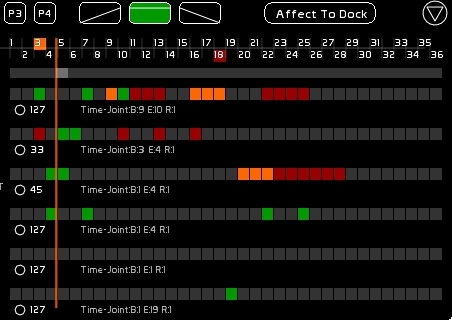
Concrete example
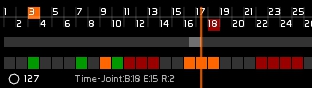
This track contains channel 1 at 50% and 2 at 80%. The time Unit is 3 seconds.
The chaser will work as follows between step 3 and step 18 in TimeStandard:
- Step 3 and 7: channels 1 and 2 switch on, stay on for 3 seconds and switch off with a 9 sec wait between steps 3 & 7 where they switch on again, stay for 3 seconds and switch off for 3 seconds (step 8)
- Step 9: ch 1 and 2 fade in over the course of 3 seconds from 0 to their completed state (1 at 50% and 2 at 80%)
- Step 10: holds ch 1 and 2 at that level for 3 secs (dwell time is 3)
- Step 11 to 13: ch 1 and 2 which are already switched on, immediately start fading out over the course of 3 seconds, and then they switch back on and fade out over 3 secs and they do this once more for a total of 3 times. There is then a 6 sec wait (steps 14 & 15).
- Step 16 to 18: ch 1 and 2 fade in from 0 to their completed state in 3 seconds and then switch off, they do this a total of 3 times
In TimeJoin mode:
- Step 3 and 7: ch 1 and 2 work as before having an in-time of 0, a dwell time of 3 and an out-time of 0 with a 9 sec wait between steps 3 and 7
- Step 9: ch 1 and 2 fade in as before over the course of 3 seconds
- Step 10: holds ch 1 and 2 for 3 seconds at their high level as before
- Step 11 to 13: (new) ch 1 and 2 fade out from their full state (1 at 50% and 2 at 80%) to zero in 9 seconds
- Step 16 to 18: (new) ch 1 and 2 fade in from 0 to their full state in 9 seconds
Subtlety: If you want 1 and 2 to not fade all the way to zero, you need to record their low state into another track as a STAY operation (Green color).
Midi Assignment
Almost all chaser commands are assignable in midi: On/Off, levels, commands, steps, etc…. See Chart of Midi Assignments. If you are not familiar with midi, please read this page: Midi Configuration and Midi Assignments.
If you want to activate steps on the fly, you can do it with the launchpad grid.
You first need to activate Launchpad mode to display the grid inside the Chaser window.

This grid may have up to 8 x 8 buttons.
You can define how many lines it has (8 x1, 8 x2, 8×5 etc…) in [CFG MENU] > MIDI > Options.
LaunchPad
Launchpad is a midi device with an 8×8 backlit matrix and 16 additional backlit buttons. These buttons are triggers that send only ON/OFF messages (no velocity is sent).
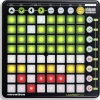
This matrix is backlit by LEDs. There is a two-way communication so that when you press the buttons, an on/off state is sent to White Cat and White Cat sends back a signal that highlights the buttons in a color when they are on and removes the highlighting when they are off.
For this Go-Go back option to work, you need to send out midi to the launchpad: [MENU CFG] > MIDI > MIDI DEVICES and you need also to activate Launchpad back lighting in > MIDI OPTIONS.
If you wish to use this feature with other non-lit devices (like the BCF2000 or UC-33), it is possible and it works.
Engage Launchpad mode
Click [Launchpad]:
The 8×8 matrix will show up.
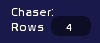
Number of rows is set in [MENU CFG] > MIDI > OPTIONS.
You can move this matrix with the arrows near [Launchpad]. Those arrows are also assignable in midi.
With back lighting, the cursor position is only displayed on the first ROW, and in yellow.
Color information is sent to the LEDs, enabling you to work on the fly with the Launchpad, without having to look at your computer screen.
Options of the chaser window
To summarize this important information:
Number of tracks shown is editable in [CFG-MENU]> General.
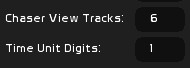
TimeUnit may be set to a decimal value enabling you to set a value with up to 4 decimal place precision. By default, TimeUnit is set to 1 digit after the point. You may want to use 4 digits to have the shortest time for your chasers.
Concerning Launchpad:
You can define the number of Rows controlled in the chaser in [CFG MENU] > MIDI > OPTIONS